How to Scan on A Canon MG2520 (Easy Work to Do)
The Canon MG2520 is a great choice for use on a daily basis. You can use it for both scanning and printing or you can name it as an all-in-one printer. However, using the Canon MG2520 is quite easy and you can scan and print photos or documents with it with ease.
The scanning process on a Canon MG2520 is nearly the same as the other printers. If you have doubts or don’t know how to scan, this article can help you learn how to scan on your MG250 printer.
In this article, we will walk you through the step-by-step process of scanning documents on the Canon MG250. So, without any further ado, let’s scan the documents.
Factors That You Will Need to Maintain Before Starting the Scanning on Canon MG2520
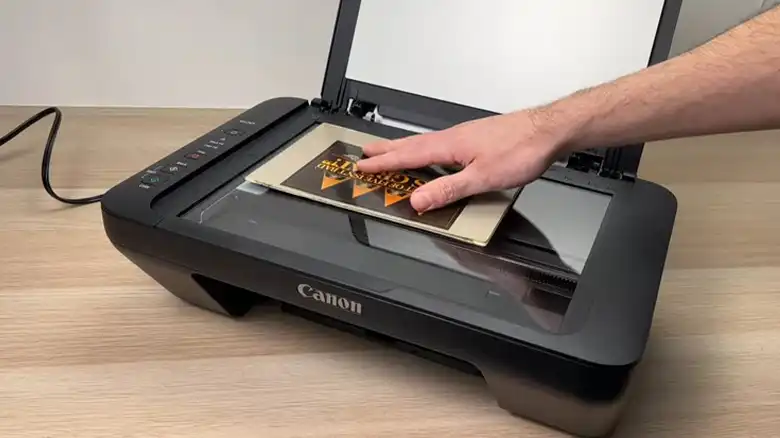
To get a proper scanning sample, you will need to keep a few things before starting the scanning process. By following so, you will get a perfect scanned document. Basically, you will need to place the items on the printer platen properly for getting proper output. Now, let’s find out the factors.
- When placing a document or a picture on the platen, always maintain a space of at least 0.4 inches or 1 cm between the item and the edges of the platen.
- If you are using multiple items then maintain a space of 0.4 inches or 1 cm at least between the items as well as between the edge of the platen and the items.
- If you couldn’t able to maintain the recommended space between the edge and the item, you will need to specify the data format. Otherwise, it will be scanned and saved as PDF.
- You cannot scan more than 12 items at a time.
Steps for Scanning a Document on Canon MG2520
Most of the Canon MG2520 users prefer the Canon IJ scan utility for scanning a document. But there are other several ways too. For example, you can use ScanGear for scanning documents. But the Canon IJ scan utility offers more than the others. That’s why we suggest you use it and to do so, you will need to follow the following steps.
First, you will need to download the Canon IJ Scan Utility. Download it and install it on your computer/mac.
Step 1: Place the Document on the Platen and Place it Properly
First, place the document on the platen and maintain the space between the document and the edges of the platen.
Step 2: Launch IJ Scan Utility
After that, on your computer or Mac, launch the IJ Scan utility. Sometimes, the IJ scan utility doesn’t display on the Start menu. You will need to find out and then launch. If you are using Windows 8 or later, then press Windows + S buttons and then type IJ scan utility and then launch.
If you are using Mac, then go to Finder’s Go menu > Applications > IJ Utility folder > IJ Scan Utility folder > IJ Scan Utility / IJ Scan Utility2 / IJ Scan Utility Lite.
Step 3: Choose the Type of Document and Adjust the Settings
Inside the IJ utility, you will get various options, if you want to scan a photo, then you can select a photo there or if you are willing to scan a page, can select Document, etc. Also, you can use the Auto option too.
When you are selecting Auto, the printer will detect it whether it’s a page, magazine, or photo, and will start scanning.
If you are willing to change the document cropping frame or change the file format, you can do so by using Settings.
For example, if you are willing to have a separate scanned page or multiple pages then,
- Click on Settings.
- On the left pane, look for Document Scan and click on it.
- In the Data Format box, if you want to scan a single paper then select PDF, and if you want multiple pages then select PDF (Multiple pages).
From there, you will also change the color mode, paper size, and resolution.
Step 4: Start Scanning
Now, you have placed the document on the scanner properly and customized the settings according to your need. It’s time to start scanning.
Get back to the initial interface of the IJ scan utility. Now, if you are willing to scan a Photo then click on Photo, or if you want to scan a document, click on the document. And after that, the scan will be started.
Bonus Tips
If you are willing to use Auto scan then before scanning you will need to adjust the cropping frames if you are using
- Thin and thick document.
- Photo with a white background.
- Handwritten documents, etc.
FAQs (Frequently Asked Questions)
How do I get my Canon MG2500 to scan?
With the help of the Canon IJ scan utility, you can easily use your Canon MG2500 to scan documents, photos, magazines, etc. Just you will need to download the utility and then start scanning.
Where is the scan button on a Canon MG2522 printer?
The Canon MG2522 printer doesn’t have a physical scanning button. You will need to use it from the software or driver that you are using for your printer.
Can I wirelessly scan on a Canon MG2520?
Unfortunately, no. The Canon MG2520 printer doesn’t have a wireless option. The USB connection is the only way to use the printer.
Does Canon MG2520 have ADF?
No, the Canon MG2520 doesn’t have an Automatic Document Feeder or ADF. If you want to scan both sides then you will need to do it manually.
Can I use Windows Fax to scan documents on Canon MG2520?
Yes, if you are familiar with and feel comfortable scanning with Windows Fax, then you can use it with Canon MG2520 without any issue.
Related reading: Canon Printer MG2520 How to Scan? 5 Scanning Methods, Canon MX922 Won’t Scan To Computer, Canon MX492 Won’t Scan.
Conclusion
With the help of the printer’s driver and software, you can easily scan your document, photo, etc. easily. Always remember the factors that we have mentioned in this article. Follow them and get a perfect and accurate digital copy of your document.