Should I Scan 24-Bit or 48-Bit Color Scans? [Explained]
While scanning a picture or image, you’ll find two options which are 24-bit and 48-bit. So, why there are two different options? Which one between them is better? If 48-bit is better than 24-bit, then why they’ve given this option, right?
Well, don’t get confused as long as we are here for you. To decide which option between 24-bit and 48-bit you should scan, you need to understand some technical stuff about 24-bit and 48-bit. Don’t worry, that won’t be long.
We will discuss them shortly in this guide and you’ll find your answer on whether you should scan on 24-bit or 48-bit after reading it. So, Grab your favorite drink. And let’s go!
What Are 24-Bit and 48-Bit Color Scans?
First, let’s shortly introduce 24-bit and 48-bit color scans.
Every digital photo is made up of 3 channels –
- Red
- Green
- Blue
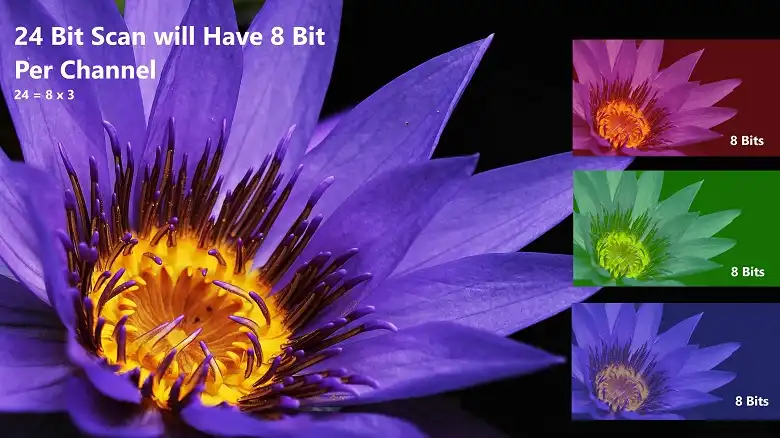
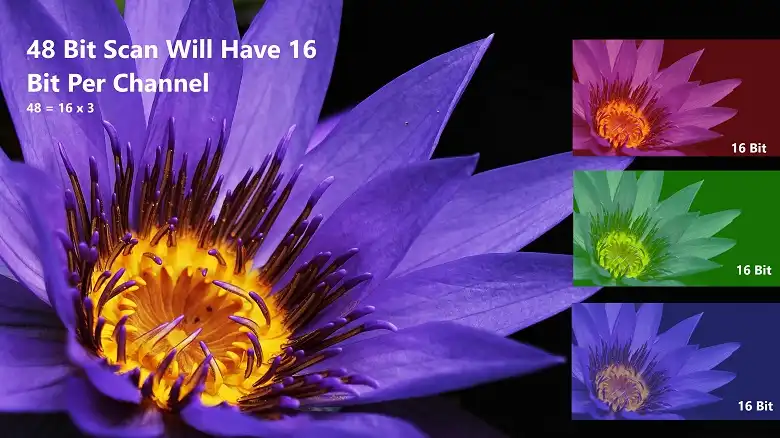
And we know them as RGB. All the colored images are made of these 3 colors. Selecting bits for scan decides how many bits are you putting per channel. Let’s clarify…

In a 24-Bit Scan, each channel gets 8 bits. How? Here is the math –
8 x 3 = 24
On the other hand, each channel gets 16 bits in a 48-Bit Scan as 48 = 16 x 3.
We know these are a bit confusing. But keep reading, because what we’re going to show you will all make sense now.
What’s The Difference Between 24-Bit and 48-Bit?
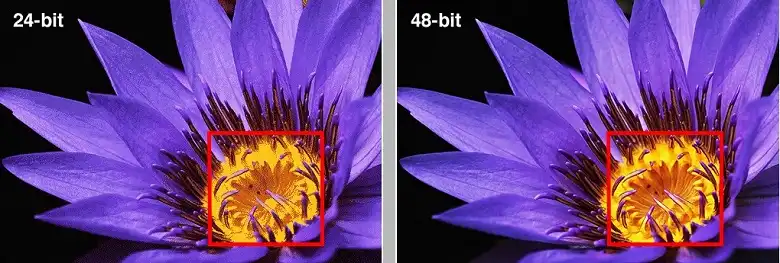
A comparison between 24 Bit and 48 Bit color scans is shown in the table.
| Factors | 24 Bit Scan | 48 Bit Scan |
| Bit Per Channel | 8 bits per channel | 16 bit per channel |
| Color | The color is slightly dull | The image looks colorful and saturated |
| Look | Looks not so smooth | Looks Smoother |
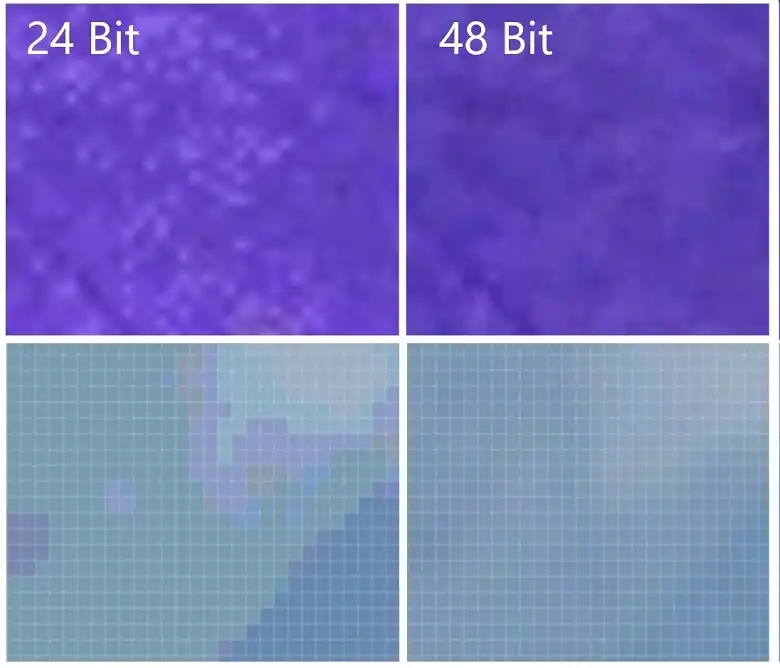
| Pixel | Differences between Pixel colors are noticeable | Differences between Pixel colors aren’t noticeable and look smooth |
| File Size | The size of the image file is small | The size of the image file is big |
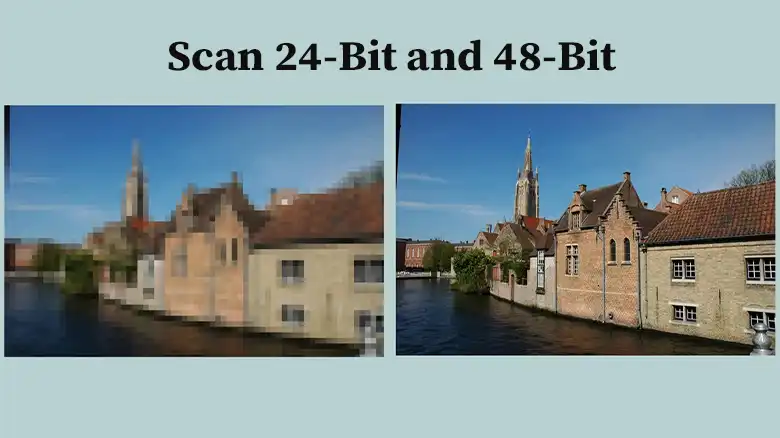
When you select 24 bits for scan, you’ll have fewer bits per color channel. And fewer bits per color channel means fewer colors in the pixels. As a result, the gradient of the scanned picture won’t be smooth like the image below.

But scanning in 48 bits gets 16 bits from each channel. Thus, the color and gradient look smoother like in the picture below.
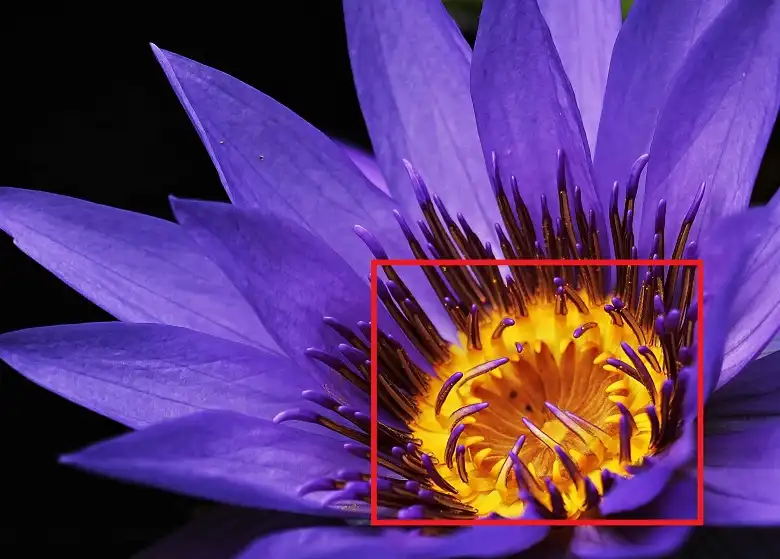
Let’s zoom in and see the difference in pixels between a 24-bit scan and a 48-bit scan.
You can check this video below to get a clearer concept of a 24-bit scan and a 48-bit scan.
When Should You Use 48 Bit Or 24 Bit Scan?
Now you’ve understood the difference between a 24-bit scan and a 48-bit scan, let’s see when you should use which option.
When To Use 24-Bit Scan and Why?
- When One Use Scans on Monitors and Tablets
Remember, every monitor displays only at 24 bits. So, even if you scan at 48 bits, you can’t differentiate because of the limitation of your monitor.
- When Use Scans on Websites
if you are scanning an image for your website, then the image should be lightweight. A 48-bit scan will be around 100MB. So, if you scan 10 images, it will be 1GB. This image will load slowly both on your computer and website.
Also, it is a bad idea to use RAW or TIFF scans on the web as they are too big. In that case, you’ll scan at 24-bit.
When To Use 48-Bit Scan and Why?
1. Printing
If you want to print your scans that need to be bigger than 4×6, and they are JPEGs, you will get print choppy color gradient if you scan it at 24-bit. It doesn’t matter whether you’re the scan is 4000 DPI or 300 DPI, for printing, you just need a RAW image file with a bigger file size. In that case, you need to go for the 48-bit scan.
2. Editing
if you want to edit the image for a magazine, ad, or movie, the 24-bit scan won’t work. You need to work with a 48-bit scan with TIFF or RAW file.
3. Future Proofing
You know that your monitor displays 24-bits and a 48-bit scan isn’t efficient. But what if the monitor can display 48 bits in the future? For future proofing, you can scan at 48-bit.
Though 48-bit scan will take a lot of space on your computer. But you can scan up and make them JEPG for your future-proofing.
Bonus Tip: Do Bits Have Any Relation to Resolution or DPI?
Many of us are under the misconception that bits had something to do with the resolution and DPI. But in reality, bits have nothing to do with the resolution. Bits are basically about Color.
So, it doesn’t affect the resolution of the picture no matter whether you scan at 24-bit or 48-bit.
Frequently Asked Questions And Answers
What Resolution Should I Scan With?
If your purpose is to have a digital copy, then you need to scan your document at a high resolution. If you’re not planning to print the scan out, a low resolution will go. You’re recommended to scan at 300 DPI (Dots Per Inch) or the highest settings on your scanner.
What Is the Difference Between 2400 and 4800 Dpi Scanner?
A print in 2400 DPI is lower in resolution than a print in 4800 DPI. A higher DPI means higher pixels in a picture. If you’re scanning a 4 x 6-inch print at 2400 DPI, it will give you a 4 x 2400 by 6 x 2400-pixel file. Similarly, a 4 x 6 scan at 4800 DPI will give you a 4 x 4800 by 6 x 4800-pixel file.
If this helped, take a look at What Is 48-Bit Color Scan? Things You Need to Know, How Do I Scan a Document without A Scanner? 3 Easy Methods, Can You Scan Glossy Paper.
Conclusion
That’s all you needed to know about the 24-bit and 48-bit scans. After reading this guide, you won’t be under the confusion about which option you should go for and can save much time while scanning. Thank you for reading and happy scanning.