How to Scan Double-Sided on Brother MFC | For Windows and Mac
Having a scanner that offers automatic double-sided or duplex scanning is a great thing and the Brother MFC is one of those whose scanners offer the same. Compared to other scanners, the duplex or double-sided scanning process is quite different on a Brother MFC scanner.
Though the process is different but it can be done so easily. With the help of ControlCenter or Scan key, you can easily scan double-sided on Brother printers.
In this article, we have shared the procedure that you can follow for duplex scanning by using the Brother MFC scanner. So, without further ado, let’s begin.
How to Scan Double-Sided on Brother MFC on Windows
If you are using a Brother printer with your Windows-operated PC/laptop then you can scan documents by using ControlCenter4, Scan key, and Scansoft software. The scan key software can be used for both Mac and Windows PC. Here is the procedure that you will need to follow.
1. Use ControlCenter4 to Scan Double-Sided on Brother MFC
The Controlcenter4 offers the easiest and simplest way to duplex scanning on Brother MFC printer. There you will have two modes available, home and advanced. Here are the steps for home mode that you will need to follow.
- Take your document and place it in the Automatic Document Feeder of ADF of the scanner.
- Now, if you are using Windows 7 or earlier then click on Start > All Programs > Brother > Printer Model Name > ControlCenter4. It will be loaded in the task tray, you can open it from there. For Windows 8 users, click on Brother Utilities > Select Printer model > Scan > Controlcenter4. And if you are using Windows 10 or later, then click on Start > All apps > Brother > Brother Utilities > Select Printer model > Scan > Controlcenter4.
- Next, in the Scan tab, click on Custom > Custom Settings.
- On the next window, select 2-sided scanning. Then it will ask whether you want Long-Edge binding or Short-end binding. Choose according to your need.
- Lastly click on Ok and then Scan. The scan will be started.
If you are willing to use the Advanced mode then you can follow this procedure too.
2. Use Nuance PaperPort to Scan Double-Sided on Brother MFC
If you are willing to have more features or options for scanning documents then you can use Nuance PaperPort. Here are the procedures that you will need to follow.
- Launch Nuance PaperPort. To do so, click on Start > All apps > Nuance PaperPort > PaperPort.
- Now, check whether the Scan is displayed on the screen on not. If no, then click on Scan Settings.
- After that, click on Select (under the Section). Next, check the box of TWAIN and choose the TWAIN driver for your printer model.
- Click on OK and if you need any customization for scanning, you can change it.
- After that, You will get to see two boxes that say Display Scanner Dialog Box and Show Capture Assistant. Make sure, you have checked the boxes.
- Put the document on the ADF and then click on Scan.
- After that, Scanner Setup will pop up and you can customize the settings if you want.
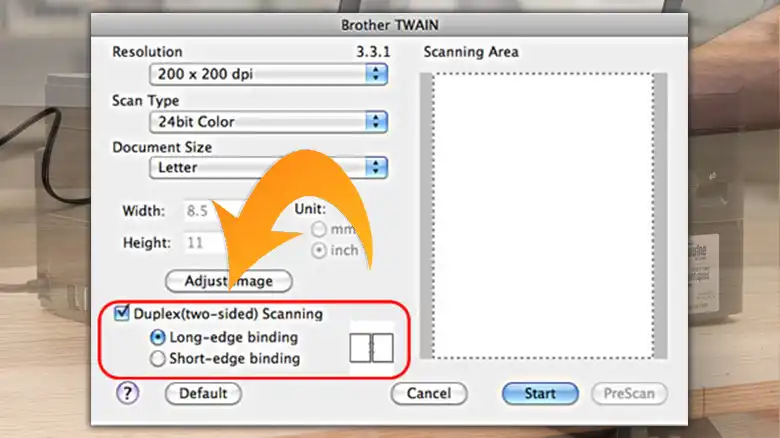
- Next, check the box that says 2-sided Scanning and choose whether you want Long-edge or Short-edge binding.
- Click on Start and the scanning process will be started.
How to Scan Double-Sided on Brother MFC on Mac
If you are using Mac and want to use it to perform duplex scanning then you can use ControlCenter2 or Presto! PageManager. Here we have shared both software procedures. Choose the best one and start scanning.
1. Use ControlCenter4 to Scan Double-Sided on Brother MFC
Here are the necessary steps that you can follow to perform duplex scanning on the Brother MFC scanner.
- First, place the document in the ADF (Automatic Document Feeder), and then launch ControlCenter2.
- To do so, click on Finder > Go > Applications > Brother > ControlCenter. Double-click on it.
- After navigating to ControlCenter, click on Configuration > Scan > Scan Type.
- Next, check the box that says 2-sided Scanning and choose whether you want Long-edge or Short-edge binding.
- Click on Ok then Scan.
2. Use Presto! PageManager to Scan Double-Sided on Brother MFC
Another software that you can use is Presto! PageManager. If you are willing to use Presto then here are the steps that you should follow.
- Launch Presto! PageManager on your Mac.
- Place the document in the ADF.
- After placing it, click on the Acquire button.
- Next, check the box that says 2-sided Scanning and choose whether you want Long-edge or Short-edge binding.
- Click on Scan.
Frequently Asked Questions and Answers (FAQs)
How to scan both sides of a document on Brother MFC L2710DW?
To scan both sides of a document on Brother MFC L2710DW, you can use ControlCenter4 for Windows and ControlCenter2 for Mac. Use this software, adjust settings, and print double-sided easily.
Can MFC L3750CDW scan double sided?
Yes, on your Brother MFC L3750CDW, you can scan double-sided automatically.
Can brother L2550DW scan double-sided?
Yes, it can scan double-sided but the catch is, you can’t do the double-sided scanning automatically. You will need to do it manually.
For related issues, see Can I Print My Taxes Double Sided, Can You Scan Glossy Paper, HP Scan to Computer Disabled.
Conclusion
Lastly, it’s not that hard to scan double-sided on a Brother MFC printer/scanner. Just you will need to use the software and set the settings. Once you are done, you can start scanning and the double-scanning will be started by itself.