[2 Fixes] Canon MX922 Won’t Scan To Computer
After printing out your documents, you put back another one to scan it. But unfortunately, your MX922 scanner doesn’t scan the document. You tried both wired and wireless connections but every time you failed. Well, it’s a very common issue among the Mx922 scanner users.
Though it’s a very irritating issue, the fixation process is easy. Most of the time, the printer’s drivers cause this issue. However, there are other reasons too. In this article, we are here to assist you to solve this not scanning issue of your Canon MX922 printer.
Follow this guideline and start scanning with your Canon MX922 again. Let’s begin then.
Why Canon MX922 isn’t Scanning Document
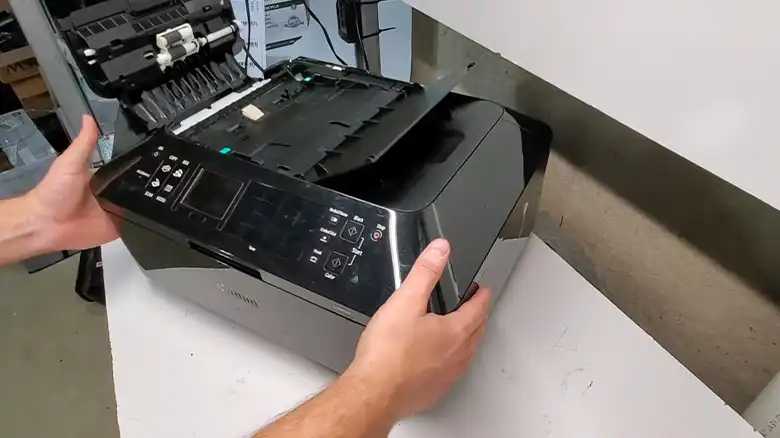
The Canon MX922 is one of the popular picks among printer users. It allows the user to use both with a wired connection as well as wirelessly. Undoubtedly, it’s a great choice for daily work but it has some freaking issues that make the users annoyed. And not scanning documents is one of them. There are several reasons behind it,
- Backdated drivers.
- cnmnpu.exe is conflicting and won’t let the printer scan.
- Using incompatible wi-fi network.
Methods of How to Fix Canon MX922 Won’t Scan Issue
There are several ways that you can follow to fix the won’t scanning issue and use your printer to scan documents. However, before going for the fixes, make sure that the connection between the PC and scanner is firmly connected. You can also perform a simple restart of your devices and check.
If still you are facing then go for the fixes below to solve this issue.
Method 1: Reinstall/Update Printer, Scanner Driver
The first option you could try is, to reinstall or update the drivers of your Printer and Network port drivers. If you have updated your OS then backdated scanning or network port driver is causing the issue. Let’s find out how to update or reinstall the drivers.
- Right-click on the Start menu and click on Device Manager.
- After navigating to Device Manager, look for the Printer option there.
- Expand the Printer and right-click on the Printer’s driver and uninstall them.
- Now, go to Canon’s website and download the Printer and scanner drivers from there and install them.
You can also update the drivers to solve this issue. Choose Update instead of Uninstalling and the update process will be started.
NOTE: While updating or reinstalling the printer drivers, if you face issues then Go to Settings > Devices > Printers and Scanners > turn off Let Windows manage my default printer.
After updating or reinstalling the drivers, you will need to reinstall the cnmnpu.exe from your computer. To do so,
- Press Windows + S and type Add or Remove Programs.
- Navigate to it and look for the Canon PIXMAMX450 series.
- Click on it and then click on Uninstall.
- Now go to Canon’s website and download the MP drivers and install it.
Now, lastly, restart your PC and check whether you can scan or not.
TIPS: If you are using Mac then you will need to install all of the printer’s drivers including printing, scanning, and ICA drivers.
Method 2: Re-setup Your Canon MX922 Printer
After updating the drivers, if you are still facing the issue while scanning documents wirelessly then you will need to re-set up your Canon MX922. Here are the necessary steps that you will need to follow.
- Look for the Menu button on your printer.
- Now, select Setup and then press the OK button.
- After that, select Device Settings and then press the OK button again.
- Inside the Device settings, look for LAN settings and select it. Then press the OK button.
- Now, select the Wireless LAN setup and press OK.
- After that select Other setup, press OK, and then select Advanced Setup. Press Ok and then follow the on-screen instructions to complete the setup.
Method 3: Change the Router Channel from 5.0Ghz to 2.4Ghz
The Canon MX922 is not compatible with 5.0 GHz. If you have connected your printer wirelessly with a router that running on 5.0GHz then you will need to connect it with 2.4 GHz. For this,
- First, you will need to uninstall the printer drivers from the PC and then factory reset your printer. Now, turn off the printer and unplug it.
- Now, keep the printers unplugged for 5 minutes, and in the meantime, restart your PC.
- Change your router’s channel to 2.4 GHz.
- On the printer, Go to Menu > Setup > Device settings > LAN settings > Wireless LAN setup > Stop > Standard setup. Now, connect the printer to the router.
- Next, connect the printer to your PC, download the drivers, and install them.
Now, check whether the scanner part is working or not.
Bonus Tips: Showing an alternative Way
There is an alternative way that you can try when you couldn’t scan documents on your MX922 printer. You can use the Microsoft Paint program to scan documents. Here are the steps –
- Press the windows key and type Paint.
- Navigate to Paint, and then click on the File option. You will find it in the top left corner.
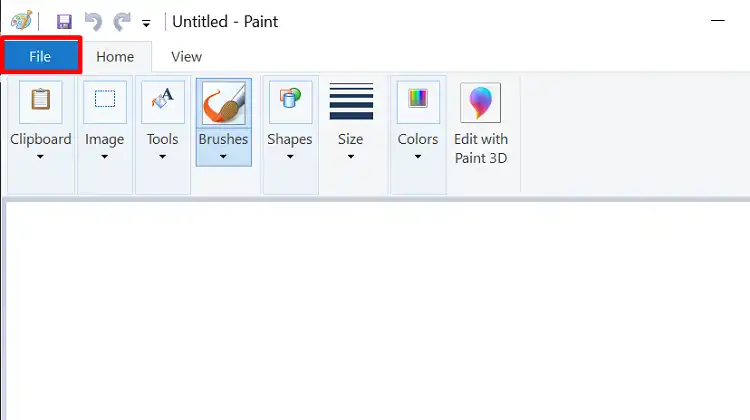
- Now, from there, click on From Scanner or Camera. On the next window, it will ask which device you want to use. Select Canon MX922.
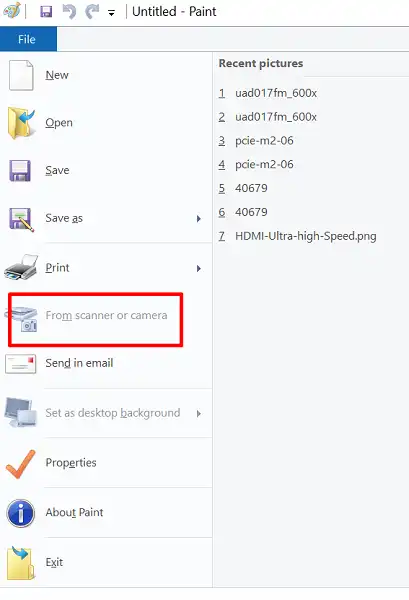
- Next, it will allow you to choose a document, select it and click on Scan.
Many users have solved the not scanning issue by using the paint, you can also give it a try.
Frequently Asked Questions and Answers (FAQs)
Is there a reset button on a Canon MX922?
Unfortunately, no. Canon MX922 doesn’t have any physical Reset button. You will need to do it from the Printer’s settings.
How do I enable scan to computer on my Canon MX922 printer?
Sadly, the Canon MX922 doesn’t have a Scan to Computer feature on it. You can’t use this feature on it.
For related issues, see Why Won’t My Canon Printer Scan to My Computer? Reasons And Solutions, Canon MX492 Won’t Scan, My Canon Printer Won’t Scan: Troubleshooting and Solutions.
Conclusion
Lastly, if the scanner portion isn’t physically damaged then by following the aforementioned methods, you can solve the issue very easily. If you are using the printer wirelessly then first follow the Way 3. If still you are facing the issue then take your printer to nearby customer service center.