Why Won’t My Canon Printer Scan to My Computer? Reasons And Solutions
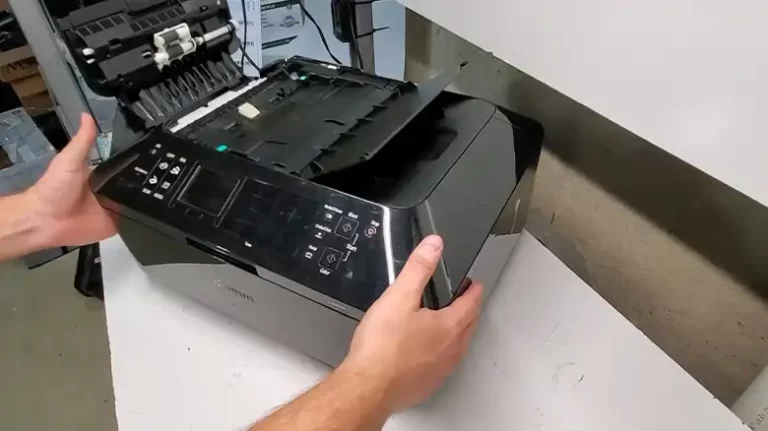
The Multi-functional printer (MFP) or all-in-one printer of Canon has become a very popular choice among users. Undoubtedly, it’s a great choice and has provided top-notch service as well. Though it’s a good product; often users have faced issues with it.
Among the issues, the Canon printer became unable to scan to the computer. Are you one of them and having a difficult time with this issue? If Yes, then you are at the very right place. Basically, this issue occurs due to a driver issue. There are other reasons as well.

Though this issue seems very troublesome, there is nothing to worry about. This issue can be solved very easily. Here we have discussed the reasons and solutions for the canon printer not scanning issue. Let’s begin then.
Reasons Why Canon Printer is not Scanning to the Computer
Electrical devices without any issue cannot be imaginable. The same thing goes for the Canon MFP as well. The most common issue of a Canon MFP is, the scanner stopped responding or you can say it doesn’t scan your documents. After encountering this issue, you will opt for the solution. But before going for the solution, first, you will need to identify the actual reason behind it. Here are the reasons –
- Most of the time the printer won’t scan due to driver issues. A backdated or corrupted driver won’t allow your Canon printer to scan on your computer.
- The Canon printer may be not compatible with your PC’s OS.
- If you are using a wireless printer then it may not be selected in the printer application.
- If you are using the scanner with a USB connection then a loose connection can cause this issue.
Here are the most common reasons that are to be blamed for the Canon printer not scanning.
Ways to Fix Canon Printer Not Scanning Issue on Computer
Before going for the fixes, do some initial work. For example, restart your PC and printer. Sometimes a restart can fix this issue. Then check the connectivity between your Canon printer and your computer. Check whether the printer is firmly connected to your PC or not. If the issue still remains then follow the fixes.
Here are the fixes that you can follow to fix the not scanning issue on your computer.
Fix 1: Update the Printer Driver
After updating your computer’s OS or enrolling in a different version of the OS, there is a possibility of the previous driver may don’t function properly. In this case, you will need to update the printer driver or install the driver which is compatible with the OS.
- Step 1: Press Windows + S button and type Device Manager. Now, enter into the Device Manager.

- Step 2: Next, scroll down and look for the Printer. Expand It and right-click on the Printer driver and click on Update. On the next window, it will ask if you want to do it manually or let your computer search and install the latest one. Choose whatever you want.


Now, check whether the issue is solved or not. If it still remains, go to the manufacturer’s website and download the driver and install it manually.
Fix 2: Perform Printer Troubleshooter
Users have reported that many of them have solved this issue by performing troubleshooting. In this case, you will need to troubleshoot the printer only. Here are the steps –
- Step 1: Press Windows + S keys and type troubleshoot. There you will get Troubleshoot settings option. Navigate into it.

- Step 2: On the next window, look for Additional troubleshooters. Click on it.

- Step 3: There you will get the Printer option under the Get up and running section. Click on it and there you will get the Run the troubleshooter option. Click on it.

Now, follow the on-screen instructions.
Fix 3: Use MF Toolbox 4.9
Many canon printer users have stated that when they use MF Toolbox 4.9 instead of Windows Fax and Scan, they were able to scan documents. Canon has introduced this toolbox as an alternative to Windows Fix and Scan. If still you are having the not scanning issue then you can give a try to this fix. Here are the steps –
- Step 1: Download and install MF Toolbox 4.9.
- Step 2: After installing, right-click on the executive or .exe file and click on Properties.

- Step 3: Now, go to the Compatibility tab.

- Step 4: Under Compatibility mode, you will get a check box named Run this program in compatibility mode for:. Checkmark the box.

- Step 5: Then you will be able to get options by expanding Run this program in compatibility mode for. Choose Windows 8 from there.

- Step 6: Now, click on Ok. Launch MF Toolbox and click on Scan-1 to scan.
Now, check whether your printer is scanning or not.
Frequently Asked Questions And Answers
Why is my laptop stuck while scanning in Canon Printer?
It can happen due to power settings. You can try to change the power settings from the Power settings. Navigate into the Power settings and choose the Power Saver option from there.
How do I enable my Canon printer to scan?
You will need to add your Canon printer to your computer to enable it. For this, go to press Windows + S and type Printer & scanners. Navigate into it and add your printer there.
Why won’t my canon printer scan to my computer wirelessly?
It happens due to backdated or corrupted driver. Before updating the driver, launch the printer software and select your printer in the device list. If the printer is not listed there, you won’t be able to update or install the latest driver.
You might also find these useful: Canon MX922 Won’t Scan To Computer, My Canon Printer Won’t Scan: Troubleshooting and Solutions, Canon MX492 Won’t Scan.
Conclusion
Lastly, the canon printer not scanning issue is very easy to solve. You will just need to follow the fixes that we mentioned earlier. If you are using it for the first time, check the OS compatibility. If the scanner is not compatible with your PC’s OS then you will need to change the OS to use the printer. If still you are facing the issue, then you will need to contact customer support or take the printer to them for repairing.