
How to Set PC to Scan? A Practical PC Setup
Scanning important documents, receipts, photos, and other papers is a handy way to create digital copies for organizing and archiving. However, before you can start scanning to your PC, there is some configuration required to get your computer and scanner connected and communicating properly.
This guide will walk through the steps to set up your Windows PC and scanner to establish functional scanning:
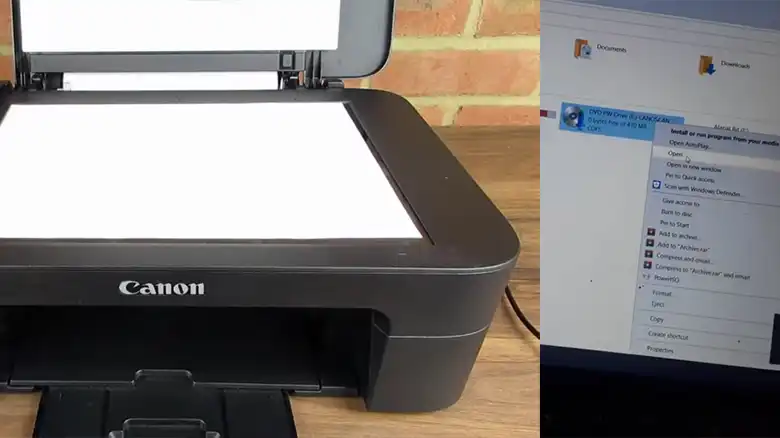
Step 1 – Install Scanner Software and Drivers
To scan from your scanner to your computer, you need the right software and drivers installed:
- Install software that comes on disc with your scanner or download the latest version from the manufacturer’s website. Common options include HP Scan, Epson Scan, Canon IJ Scan Utility, etc.
- Also install any scanner model-specific drivers needed. Keep these updated for the best performance.
- Restart your computer after installing scanner software and drivers. Connect your scanner via a USB cable or WiFi.
- Windows should detect the new hardware and finalize driver installation. Check for alerts of successful installation.
Step 2 – Configure Scanner Settings
Once connected and powered on, access your scanner software to adjust key settings:
- Select your scanner model if prompted when launching the software.
- Adjust scan settings like resolution, color mode, file formats, etc. according to your needs. Presets make this easy.
- Enable any scanner options like multi-page scanning, duplexing, OCR, etc. if supported.
- Enter email, folder destinations, or cloud storage settings if planning to scan directly to those locations.
Step 3 – Perform Test Scan
Do a trial scan to confirm everything is working:
- Place a test document or photo on the scanner. Initiate preview or quick scan in software.
- Check the preview image looks correct. Adjust scan settings as needed.
- Complete the scan process, selecting file save location and naming convention.
- Open the saved scan file and verify quality, orientation, and completeness.
- Troubleshoot any issues now before scanning more valuable originals.
Step 3 – Adjust Computer Settings
Some additional computer adjustments may optimize scanning:
- Increase virtual memory/page file size to prevent memory errors with large scans.
- Change power settings so the computer doesn’t sleep during lengthy scan jobs.
- Add your scanner software to antivirus and firewall-allowed program lists.
- Set the scanned image default folder location to an easily accessible place.
Step 4 – Create Scan Shortcuts
For frequent scanning tasks, set up shortcuts:
- Configure one-touch scan buttons on your scanner if available.
- Set up shortcut keys to launch your scanning software quickly.
- Create scan presets or profiles in your scanner software for common jobs.
- Drag scanner software to your desktop taskbar for easy access.
With the scanner set up complete, you’re ready to start digitizing documents, photos, receipts, and more with ease!
Additional Tips for Scanning Documents
Scanning documents is a convenient and efficient way to digitize important paperwork, preserving them for future reference or sharing them electronically. However, to ensure the scanned documents are clear, accurate, and compatible with various software programs, it’s essential to follow some key guidelines.
- Maintain a Clean Scanner Glass: Before placing your document on the scanner, thoroughly clean the scanner glass to remove any dust, smudges, or debris. These imperfections can cause artifacts or imperfections in the scanned image, compromising its clarity.
- Smooth Out the Document: Ensure the document is flat and smooth before scanning. Wrinkles or curls can hinder the scanner’s ability to capture all the details of the document. Smoothing out the document beforehand ensures an accurate and complete scan.
- Preview the Scan Before Saving: Always preview the scan before saving it to check for any errors or imperfections. This allows you to make any necessary adjustments to the scan settings before saving it permanently.
- Choose a Compatible File Format: Select a file format that is compatible with the software you intend to use for viewing or editing the scanned document. PDF is the most common and universally compatible format, but other options include JPEG, TIFF, and PNG.
You might also find these useful: Epson WF 2540 Scan to PC, HP Scan to Computer Disabled, Kyocera 4803 Scan Error: A Guide to Troubleshooting and Resolution.
Conclusion
The key steps to prepare your PC for scanning are installing scanner software and drivers, adjusting settings in the scanner program, performing test scans, tweaking computer configurations, and creating shortcuts. Following this straightforward process ensures your computer can communicate with your scanner device properly. Just remember to stay organized with your scan files, maintain your scanner, and update software periodically. With a scan-ready PC, you’ll be archiving and backing up important papers in no time!


