[Explained] Can You Scan Glossy Paper?
The scanner scans the image or text from a piece of paper and alters the light-sensitive drum’s electrostatic charges. Bus as glossy paper reflects lights, people often face the dilemma of whether they can scan a glossy paper using their scanner.
Fortunately, you can scan glossy paper in a good way using a scanner. However, there is a condition – if you are scanning a glossy image then it will work well with your scanner. But if you plan to scan a glossy bar code, the scanned bar code may not work.
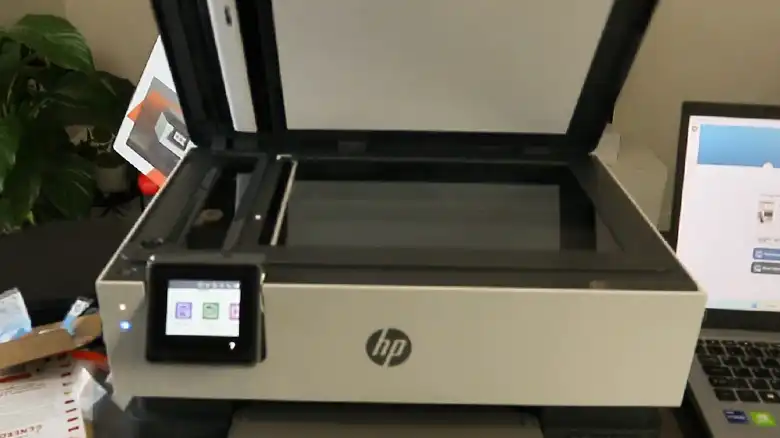
Scanning glossy paper is slightly different from scanning matte paper. If you don’t know what to do while scanning a glossy paper; Don’t worry, we are here to guide you on whether you can scan a glossy paper or not and what you should do while scanning a glossy paper. Let’s find out below.
Is It Possible to Scan a Glossy Paper?
So, can you scan a glossy paper using your printer, the answer is – yes! Today scanners are much smart than before and you won’t find any complications while scanning a glossy paper using your scanner.
Basically, all types of scanners can scan glossy papers; But if you plan to print high-quality images from that glossy paper, then you are recommended to use photo scanners rather than using a regular document scanner. Because a regular document scanner will successfully scan the glossy paper, but you may not get the best quality scanned picture from that.
However, you can improve the quality of the scanned picture using a regular document scanned by customizing the scan settings. Let’s see how you can scan a glossy paper below.
How to Scan Glossy Paper
To scan a glossy paper, you need to plug the scanner into the power outlet and connect it to the computer first. Ensure the glass surface of the scanner is wiped with a soft cloth. Then turn on the scanner using the power button and follow the steps below:
Step 1: Place the glossy paper face down on the glass surface of the scanner. Make sure the edge of the paper is placed under the marked area on the glass surface of the scanner and then press the Scan button.
Note: If you can’t find the “Scan” button, follow the direction from the Scanner’s manual or use the scanner’s third-party app to scan the paper.
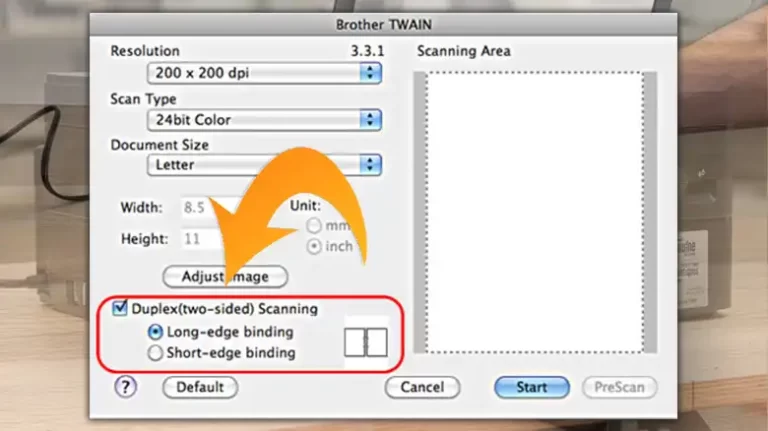
Step 2: Pressing the Scan button will open the scanner’s third-party software where you need to select “Photo Mode” from the Mode option. Select “Glossy” or “Reflective” from the Document Type settings among “Newsprint”, “Matte”, or any other options.
Step 3: Select “Color” as the Image Type and 300 or higher for standard glossy paper from the Pixel per Inch (PPI) Settings.
Note: If you find the picture or text on the glossy paper blurry on the preview, adjust the format settings and PPI settings to fix it.
Step 4: Click Preview and crop the previewed image and ensure that no white background is showing in the finished image.
Step 5: Go to Advanced Settings and adjust the brightness, contrast, saturation, color resolution, dust removal, and other options to adjust your scanned image correctly.
Note: If you want to print the scanned picture rotate the image to the left or right before saving it on your computer.
Step 6: Select the save format from the list of PDF, JPEG, BMP, PNG, and other options; Confirm the file name, select the save folder, and finally, click Scan.
If you’re still having any issues scanning the glossy paper, you can try the instructions from our bonus tip below.
Bonus Tip to Scan Something Glossy
If you need to scan any shiny or glossy object, then here is an awesome hack for you. Grab baby powder or talc powder and mildly coat the glossy paper using a paintbrush. It will reduce the glossiness and will scan the paper perfectly. Don’t put too much powder or it will decrease the picture quality.
Frequently Asked Questions And Answers
How Do I Scan Old Glossy Photos?
You can scan your old glossy photos using a regular document scanner or using your phone’s camera. But the scanned picture may be distorted in this way. The best way to scan glossy photos is Flatbed Scanner. They are made for scanning glossy papers.
How Do I Scan and Print Glossy Photos?
You can scan a glossy photo using a Flatbed scanner or any regular scanner. Then you need to select glossy from the scanner’s app setting and rotate the image. Finally, put photo paper in your printer and print the scanned or saved image to the photo paper to get a glossy photo.
Related reading: How to Scan Double-Sided on Brother MFC, Is There a Scan Button on My HP Printer, How to Scan on Canon Pixma MG2922.
Conclusion
Scanning glossy paper can be a challenge if you don’t know the right settings and process to do it. Because glossy papers reflect lights which can distort the scanned picture. But adjusting the scanning settings correctly will solve this issue. As everything is explained in this article we hope, you won’t face any problems scanning your glossy paper after reading this guide. However, if you’re still having issues, you can try the trick that we’ve mentioned in the bonus tip section above.