My Canon Printer Won’t Scan: Troubleshooting and Solutions
In today’s digital world, scanners have become an indispensable tool for converting physical documents into digital formats. However, when your scanner malfunctions, it can disrupt your workflow and productivity. If you’re facing the issue of your Canon printer not scanning, don’t fret. This guide will help you learn the potential reasons behind this problem and provide step-by-step solutions to get your scanner back in action.
Reason 1: Improper Connection
A loose or damaged connection can prevent your Canon printer from communicating with your computer, leading to scanning issues. This can occur with both wired and wireless connections.
Solution:
- Power Connection: Verify that the power cord is firmly plugged into both the printer and a working power outlet. Try using a different outlet to rule out a faulty power outlet.
- USB Cable: Inspect the USB cable for any visible damage, such as fraying or cuts. If the cable appears damaged, replace it with a new one. Ensure the USB cable is securely connected to both the printer and your computer’s USB port.
- Wireless Connection: If using a wireless connection, check that the printer is connected to the same Wi-Fi network as your computer. Ensure your Wi-Fi network is active and stable. Try restarting both the printer and your router to reset the wireless connection.
Reason 2: Outdated or Corrupted Printer Drivers
Outdated or corrupted printer drivers can disrupt the communication between your printer and your computer, causing scanning problems. Regular driver updates are crucial for optimal printer performance.
Solution:
- Uninstall Existing Drivers: Access your computer’s Device Manager and locate the printer driver under Imaging Devices. Right-click on the driver and select “Uninstall device.”
- Download Latest Drivers: Visit Canon’s official website and identify the latest driver software compatible with your printer model and operating system. Download and install the updated drivers.
Reason 3: Incorrect Scanner Settings
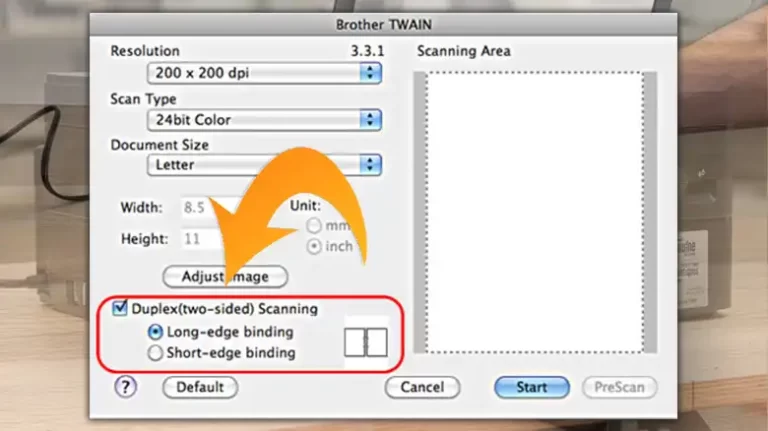
Improper scanner settings can lead to scanning errors or prevent the scanner from functioning correctly. Double-check the scanning settings to ensure they match your scanning requirements.
Solution:
- Open Scanning Software: Launch the scanning software provided by Canon, such as IJ Scan Utility.
- Check Scanning Settings: Review the scanning settings, including document type, resolution, and destination. Ensure these settings align with your scanning needs.
- Document Placement: Properly position the document on the scanner bed, aligning it correctly and ensuring it doesn’t overlap the edges.
Reason 4: Software Conflicts or Temporary Glitches
Sometimes, software conflicts or temporary glitches can interfere with the scanning process. A simple restart can often resolve these issues.
Solution:
- Restart the Printer and Computer: Turn off both the printer and your computer, wait for a few minutes, and then power them back on.
- Check for Software Updates: Ensure your computer’s operating system and all relevant software are up to date. Outdated software can cause compatibility issues.
- Close Unnecessary Programs: Close any programs that might be interfering with the scanning process, especially resource-intensive applications.
Reason 5: Dirty or Damaged Scanner Bed
Dust and debris buildup on the scanner bed can obstruct the scanning process and affect image quality. Regular cleaning is essential for maintaining optimal scanner performance.
Solution:
- Clean Scanner Bed: Use a soft, lint-free cloth to gently clean the scanner bed, ensuring no particles remain. Avoid using harsh chemicals or abrasive materials.
- Preventive Measures: Regularly clean the scanner bed to prevent dust and debris buildup. Handle documents carefully to minimize the risk of debris falling onto the scanner bed.
Reason 6 – Error messages
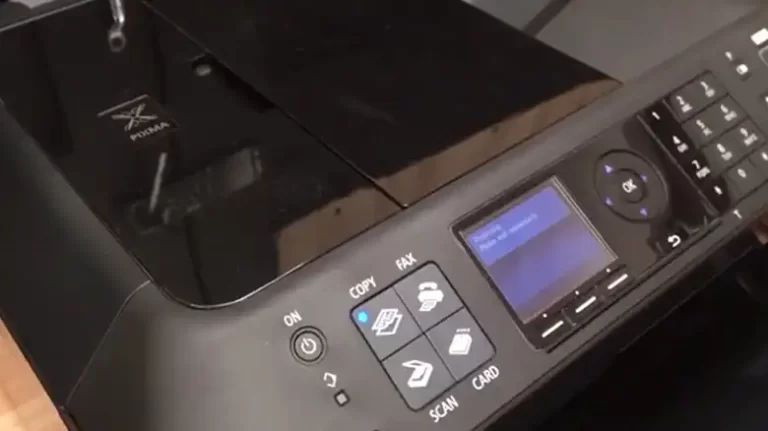
When your Canon printer encounters an issue, it may display error messages on its screen or in the scanning software. These error messages provide valuable clues about the nature of the problem and can help you narrow down the troubleshooting process.
Solution:
Check with the printer’s user manual. If you don’t have it then you can find it on Google, search for it, and download the manual.
Let’s have a few examples, if you are using Pixma MGF5270 and if you get error code 252 or 203, then it means, your device doesn’t have enough space, in this case, freeing space will help you out.
If you are using, the TS3100 series, and you are getting E61or support code 3412, then there is an issue with the position of the original sheet on the glass platen. using inappropriate–sized paper such as paper smaller than 1.2 inches can also cause the issue.
You might also find these useful: Why Won’t My Canon Printer Scan to My Computer? Reasons And Solutions, Canon Printer MG2520 How to Scan? 5 Scanning Methods, Canon MX922 Won’t Scan To Computer.
Conclusion
Scanning problems with Canon printers can be frustrating, but by following the troubleshooting steps outlined in this guide, you can identify the underlying cause and implement the appropriate solutions. Remember to maintain regular printer maintenance, including cleaning the scanner bed and keeping drivers updated, to prevent future scanning issues.