
Can You Use Notebook Paper in A Printer? Printer Hacks
Have you ever wondered if you could use notebook paper in a printer? After all, it’s just paper, right? Wrong! Notebook paper is different from regular printer paper in a few key ways. For one, it’s often thinner and less absorbent. It may also have perforations or spiral binding. This can make it difficult to feed through a printer and can cause jams.
Yes, you can use notebook paper in a printer, but there are a few things you need to keep in mind.
To print on notebook paper, ensure your printer is compatible and avoid overloading the tray. Use low print quality to prevent ink smudging.

Is the Printer Compatible with Notebook Paper?
Not all printers are compatible with notebook paper. Some printers are only designed to print on thicker paper, such as copy paper or cardstock.
Different paper thicknesses
Notebook paper is typically thinner than regular printer paper. This is because notebook paper is designed to be lightweight and portable. However, the thinner paper can be more difficult for the printer to feed through, and it is more likely to jam.
Paper coatings
Some notebook paper has a coating that can interfere with the printing process. This coating is designed to make the paper smoother and more resistant to smudging. However, it can also prevent the ink from adhering to the paper properly. This can result in poor print quality or even jams.
Perforations and spiral binding
Notebook paper that is perforated or spiral-bound can also cause jams. The perforations and spiral binding can get caught in the printer’s rollers, causing the paper to stop feeding.
How Does It Work Then?
If your printer is compatible with notebook paper, you can load it into the printer tray just like regular printer paper. However, there are a few things you need to keep in mind. First, be careful not to overload the printer tray. Notebook paper is often thinner than regular printer paper, so it’s more likely to jam if the tray is too full. Second, use a lower print quality setting. This will help to prevent ink smudging.
If you want to use notebook paper in a printer, here are some tips:
- Set the print mode to draft quality or low DPI – Higher resolution printing needs specially coated paper.
- Use ink sparingly – Choose economy mode to reduce ink saturation and prevent bleeds.
- Print in black and white only – eliminates bleed issues between colors.
- Select lighter print density – reduces ink/toner coverage on the rough notebook surface.
- Use a stack with aligned edges – Misaligned stacks can skew or jam.
- Feed paper slowly and adjust guides – Notebook paper is less rigid and alignment is important.
- Try different grain orientations – Mount paper landscape or portrait style.
- Use thicker paper if possible – 70gsm paper holds up better than 50gsm versions.
- Print on one side only – The flip side has even lower ink adhesion.
- Select plain paper setting – Optimizes ink drying time and feed speed.
With testing, you can dial in settings like print quality, paper type, ink levels, orientation, and feeding to minimize issues when using notebook paper. Just don’t expect archival print quality for photos or critical documents.
Can the Printer Print on Both Sides of Notebook Paper?
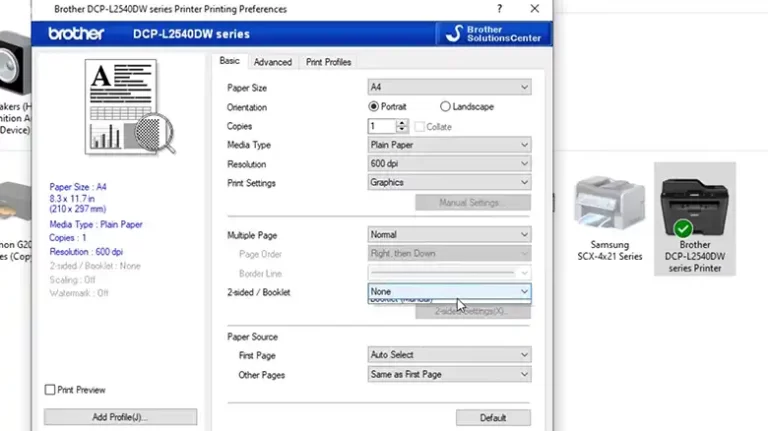
Yes, most printers can print on both sides of notebook paper. Most home and office printers have duplexing capabilities to print on both sides of a sheet of paper. However, duplex printing works best with thicker, high-quality printer paper. Notebook paper presents some challenges for double-sided printing:
- Ink Bleed-through – With the thin paper and high moisture content, ink will saturate through to the other side.
- Jam Risk – Flipping the thinner paper over risks paper jams and wrinkling.
- Toner Adhesion – Laser printers fuse toner to one side, so adhesion on the flip side is poor.
- Print Alignment – Registration may be off printing alternate sides risking image alignment.
- Curl – Ink absorption can make notebook paper curl when printed on both sides.
So while some printers may technically allow duplexing on notebook paper, the print quality will be low. Pages may be wrinkled or crumpled. Text and images may be obscured by bleed-through or misalignment between pages.
For occasional convenience, single-sided printing on notebook paper should work fine. But any critical documents or presentations should be printed on quality printer paper instead.
Things Need to Keep in Your Consideration While Using Notebook Paper in a Printer
If you decide to use notebook paper in your printer, keep these tips in mind:
- Perform test prints – Check ink adhesion, bleed-through, and jamming before a big job.
- Print only occasional drafts – Don’t use it for final prints or large projects.
- Select thicker paper if available – 70gsm has better toner and ink holdout.
- Avoid coated notebook paper – Coatings can rub off and clog printer.
- Check grain direction – May improve feeding from certain tray orientations.
- Clean the printer after use – Residual paper dust can impact later prints.
- Watch the paper source – Some trays have trouble handling thin paper.
- Don’t over-saturate the paper – Use draft mode and reduce ink levels.
- Review both sides after printing – Make sure the ink did not bleed through.
With some caution taken, notebook paper can work in a pinch for basic document printing. But for quality results, using standard printer paper is always advisable. Just avoid using notebook paper for photos, presentations, or archival records.
End Notes
While it is possible to use notebook paper in a printer, there are a few things you need to keep in mind to avoid jams and other problems. Make sure that your printer is compatible with notebook paper, be careful not to overload the printer tray, use a lower print quality setting, and use a higher-quality notebook paper if you plan on printing on both sides. Manually feeding the notebook paper into the printer, one sheet at a time, can also help to reduce the risk of jams.
More from our guides: Can I Use Canon Photo Paper with HP Printer, Can I Use Epson Ink in Canon Printer, My Canon Printer Won’t Scan: Troubleshooting and Solutions.


![[Answered] Can I Use Canon Photo Paper with HP Printer?](https://documenthow.com/wp-content/uploads/2023/03/6.webp)
