How to Scan on Canon Pixma MG2922 (Steps Guideline)
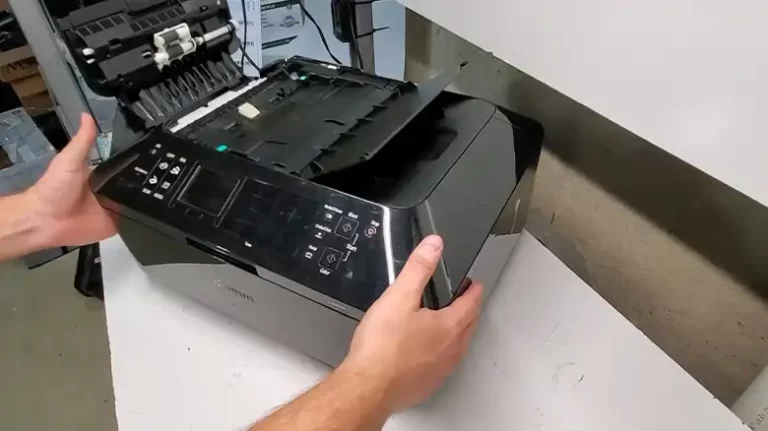
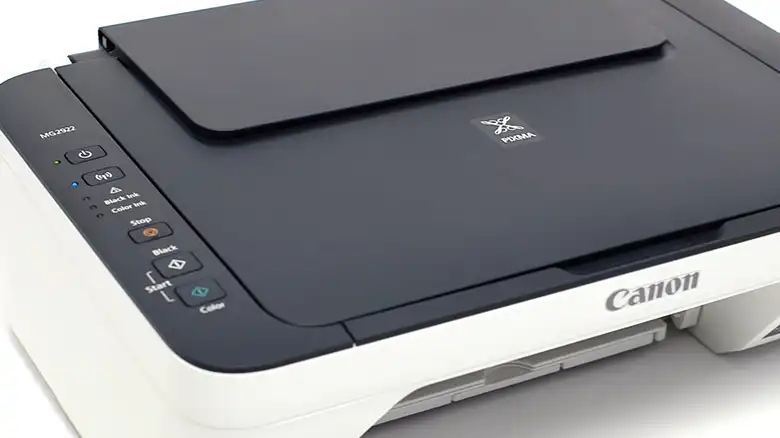
The Canon Pixma MG2922 all-in-one printer is one of the popular printers among users. It offers both wired and wireless connections. Also, you can use your smartphone to scan or print documents by using Canon Pixma MG2922.
Most of the users have a basic about the printing process but many of them don’t have a proper idea about the scanning section. Are you one of them? If yes then this article can help you to learn about how to scan documents with the MG2922 printer.
In today’s article, we have shared the scanning guideline which will help you to scan documents or pictures on a Canon Pixma MG2922 printer. So, let’s begin then.
Procedure for Scanning a Document on Canon Pixma MG2922
For scanning a document on Canon MG2922, you can do it by using your PC, smartphone, or the printer itself. Here we have shared the steps for every possible device that you can follow to scan a document or photo using the Canon MG2922.
1. Steps to Use a PC to Scan a Document on Canon Pixma MG2922
For scanning any document, you can use any software that is compatible with the Canon Pixma MG2922 printer. Here we have shared the steps for the official printing software for the Pixma MG2900 series. The process is very simple and the scanning can be done with ease.
- If you don’t have the Canon Pixma MG2922 printer software package then go to the Canon website and download it from there.
- Now, install it on your computer. While installing it will ask which additional software you want to install. Make sure you have checked the Quick Menu. With Quick Menu, the scanning process can be done in a couple of seconds.

- Now, place the Document or picture on the platen or Scanner glass.
- Next, on your monitor, click on Canon Quick Menu, and then at the right bottom corner, you will get a quick menu.
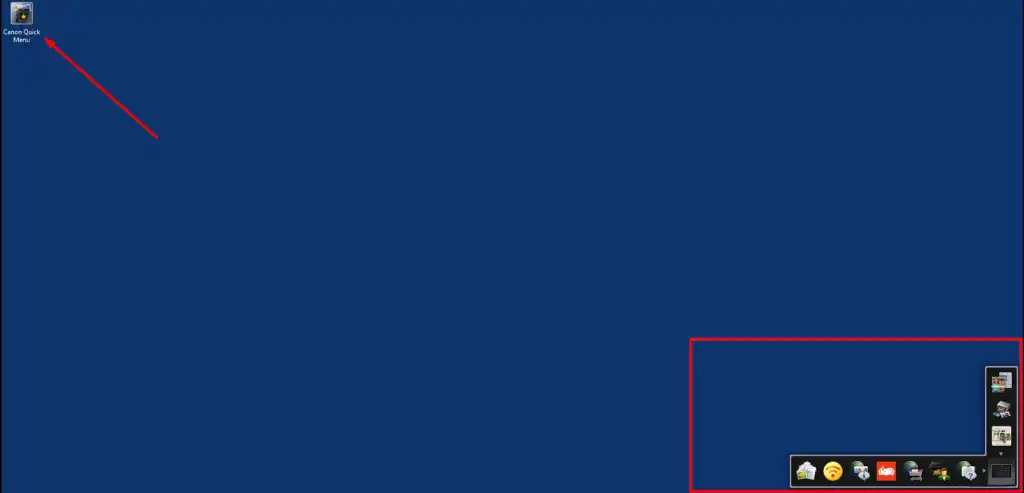
- There you will get the scan option. Click on it, the scanning process will be started. Once the scan is done, the file will be saved on your PC.
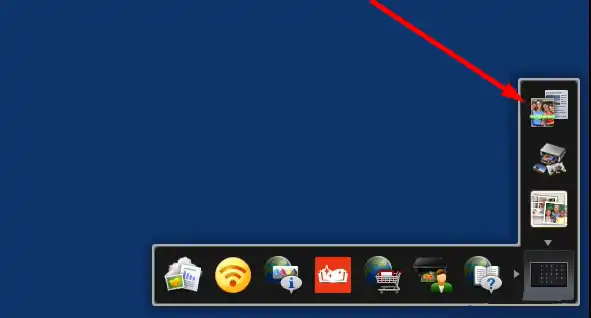
This is the simplest and easiest way for scanning a document on a Canon Pixma MG2922 printer. You can also try IJ Scan Utility or Photo Garden to scan a document from your PC/Mac.
2. Steps to Use a Smartphone to Scan a Document on Canon Pixma MG2922
The Canon Pixma MG2922 offers wireless connectivity and it’s also compatible with smartphones. That means you can use your Android or iOS smartphone with Pixma MG2922 to scan documents. In the app store, you can download the Canon print inject/selphy application to scan documents on the MG2922 printer. Here are the steps that you will need to follow.
- Download and install the Canon print inject/selphy app.
- Now, launch the application and connect your phone to MG2922 via a WI-FI connection.
- After that, place the document or photo on the scanner glass.
- Inside the Canon print inject/selphy app, look for the Scan option and tap on it.
- Now, from there adjust the settings according to your need and then start the scanning process.
Pro Tips
When placing a document or a picture on the platen, always maintain a space of at least 0.4 inches or 1 cm between the item and the edges of the platen. If you are using multiple items then maintain a space of 0.4 inches or 1 cm at least between the items as well as between the edge of the platen and the items.
FAQs (Frequently Asked Questions and Answers)
Where do scans go on Canon Pixma MG2922?
After scanning a document, you can find the file in the My Documents folder on your PC. If you are using the IJ utility scan, then the document will go to My Documents and the picture will go to the Picture folder.
How do I scan multiple pages on a Canon mg2922?
If you are willing to scan multiple pages automatically then you will need to use IJ utility scan software. There you will find an option named Auto. Click on that and then you will be able to scan multiple pages.
For related issues, see Canon MX922 Won’t Scan To Computer, How to Scan on A Canon MG2520, Canon MX492 Won’t Scan.
Conclusion
To conclude, scanning a document on Canon Pixma MG2922 can be done with ease. On Windows or Mac, there you will get a lot of software that can be used to scan a document. However, without any software, you can use Windows Fax and Scan feature to scan documents. you can use Microsoft Paint to scan pictures on your Canon Pixma MG2922.