How To Make Brochures On Microsoft Word 2007
In a world filled with digital content, printed materials like brochures still hold a special place. Whether it’s for a business, event, or project, brochures are a fantastic way to convey information effectively. If you’re using Microsoft Word 2007, you might be wondering, “How can I make brochures with this vintage version?”
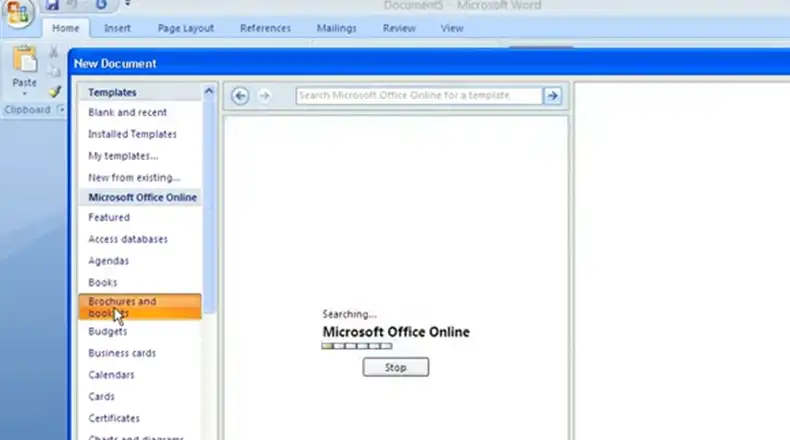
Microsoft’s Word 2007 has plenty of brochure templates. With these brochure templates, you can quickly and easily create brochures for any occasion. Ohh maybe you don’t know where to find those templates…
Well, you’re in luck! In this article, we’re jumping into the world of brochure creation using this classic but capable software. So, let’s flip the page and unleash your brochure-making skills using Microsoft Word 2007.
Methods to Make Brochures Using Microsoft Word 2007
Here are the steps to follow:
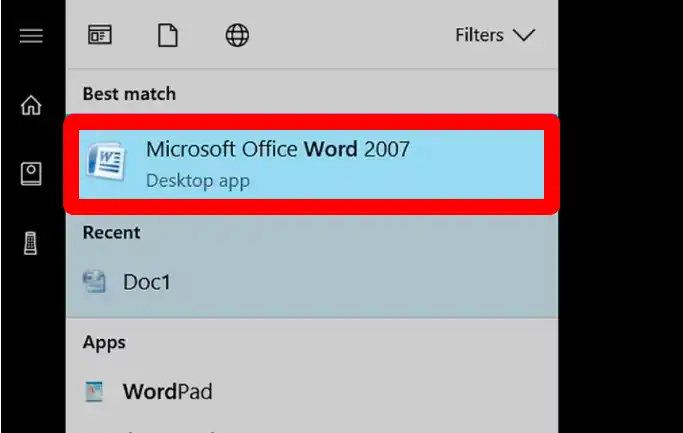
Step 1: Launch Microsoft Word 2007. You can find Microsoft Word as a dark-blue application with a white “W” icon.
Step 2: In the top search bar, type “brochure” and then press the Enter key. This action initiates a search in the database for available brochure templates.
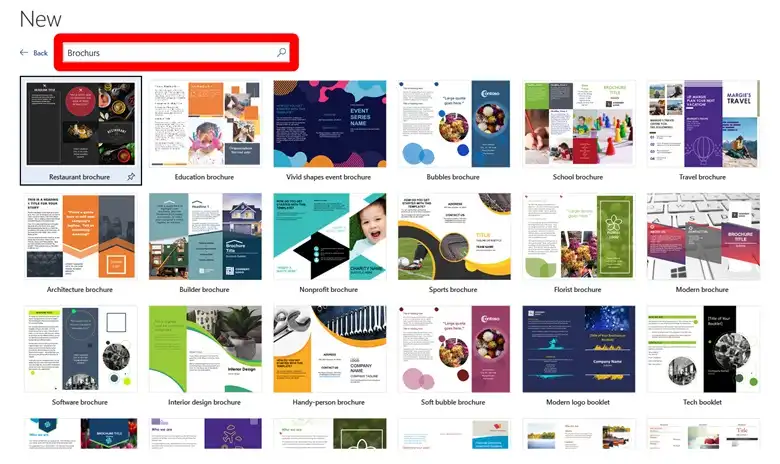
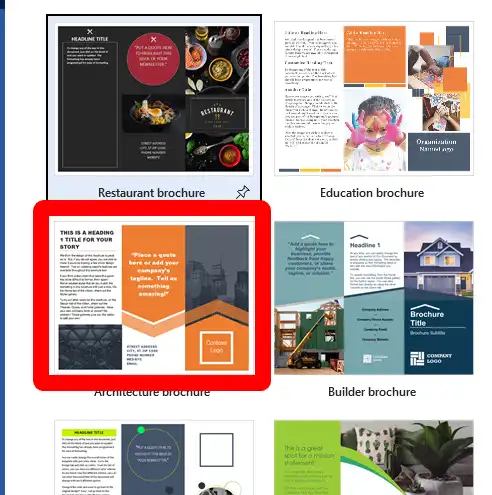
Step 3: Choose a brochure template that suits your needs. Find a template that appeals to you and click on it. This will open a preview page of the selected brochure. Most brochure templates have a similar format, so your choice should primarily be based on its appearance.
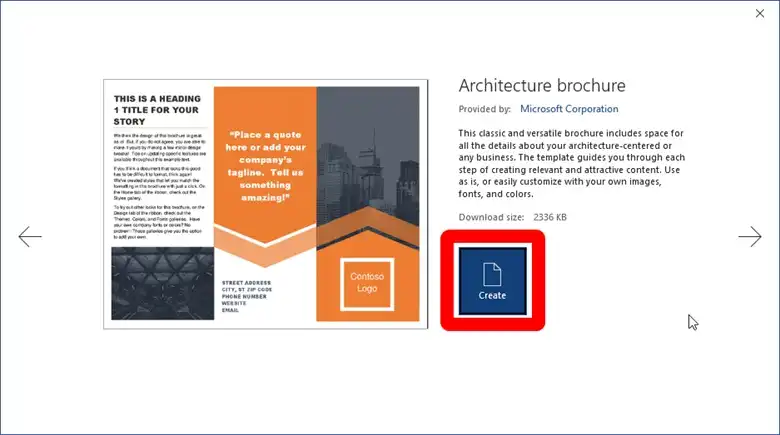
Step 4: Click on “Create.” You’ll find the “Create” option to the right of the brochure’s preview. Clicking this will prompt Word to load the selected brochure, which typically takes only a few seconds.
Step 5: Input your brochure’s information. The details you need to provide may vary based on the chosen template. However, for most brochures, you can replace the placeholder text with your company’s information in each designated spot.
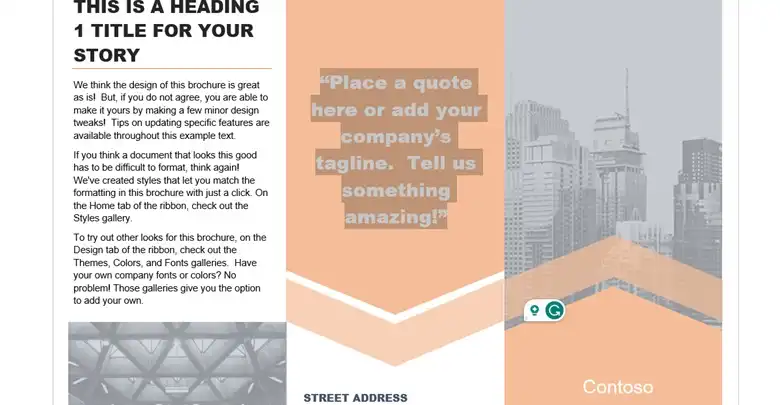
Brochures often have multiple pages containing various sections, including a testimonials section. If there are images in the brochure that you want to replace, you can do so by clicking on an image, going to the “Format” tab, clicking “Change Picture,” selecting “From a File,” and choosing a file from your computer.
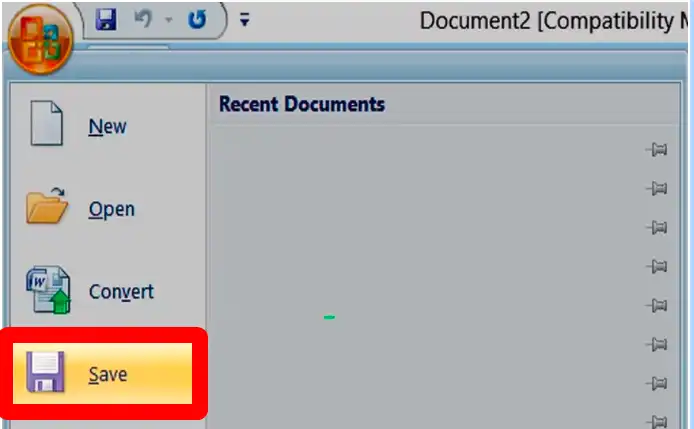
Step 6: Once you are done with the designing, go to the “File” menu, click “Save As,” choose a location, and select “PDF” as the file format.
Finishing Words
Creating brochures with Microsoft Word 2007 may not offer the same level of design finesse as modern desktop publishing software, but it’s still a versatile tool. With a bit of creativity and attention to detail, you can produce eye-catching brochures to share your message effectively.
Remember that the design and content of your brochure should align with your purpose, whether it’s promoting a business, informing about an event, or sharing a project. So, go ahead and craft brochures that leave a lasting impression! If you have more questions or need assistance with specific aspects of brochure design in Word 2007, feel free to leave a comment. Thanks for reading, and happy brochure-making!
Frequently Asked Questions
1. Can I create brochures in Microsoft Word 2007 without using a template?
Yes, you can design brochures from scratch in Word 2007 by customizing page layout, adding columns, and incorporating your content and visuals.
2. How do I change the page orientation to landscape in Word 2007?
To change the page orientation to landscape, go to the “Page Layout” tab, click on “Orientation,” and select “Landscape.”
3. Can I add hyperlinks to my brochure in Word 2007?
Yes, you can add hyperlinks to text or images in Word 2007. Select the text or image, right-click, choose “Hyperlink,” and enter the web address or document location you want to link to.
4. How can I print a brochure as a booklet in Word 2007?
To print your brochure as a booklet, set up the page layout correctly, ensure your content is in the right order, and choose the “Print on Both Sides” option in the print settings. You may need to use a duplex printer for this feature.
5. What’s the recommended paper type for printing brochures in Word 2007?
It’s advisable to use high-quality, glossy, or matte paper for printing brochures, as it enhances the overall appearance and durability.
6. Can I insert tables in my brochure using Word 2007?
Yes, you can insert tables to organize and present information in your brochure. Go to the “Insert” tab and select “Table” to create and format tables.
7. What’s the best way to proofread my brochure in Word 2007?
You can proofread your brochure by manually reviewing the content for errors, or you can use the built-in spelling and grammar check feature in Word 2007.
8. Are there any online resources or tutorials for designing brochures in Word 2007?
Yes, there are many online tutorials, guides, and video resources available that can help you learn the ins and outs of designing brochures in Word 2007. You can find them on websites, forums, and video platforms.
Related reading: Is Word 2010 Better than 2007? Reasons Explained, How to Fix Microsoft Word Starter 2010 Cannot Be Opened, Why Is Microsoft Word Background Gray? 2 Simple Methods to Change.