[6 Fixes] Computer Reboots When I Print
Many Windows users have reported that their computer reboots when they try to print any documents after the recent update (KB 4524147) launched by Windows. So, most probably this issue is occurring due to the Windows update. However, there are many factors that can trigger this issue.
If you are facing an error saying “APC_INDEX_MISMATCH for win32kfull.sys” and your computer reboots each time you print something like a PDF, DOC file, or directly from the browser, then we know your frustration.
But don’t worry as you are just in the correct place where you can find the accurate reason and best solution to fix this issue on your computer. So, keep reading till the end of this article and follow the instructions accordingly to fix the problem.

Why Is Your Computer Reboots During Print?
There can be several reasons why your computer reboots when you want to print. Here are the most possible reasons for this issue:
- Issues with Windows Update
- Incompatible Driver
- Hardware Malfunction
- Outdated Printer Firmware
- Virus or Malware Attack
The reason may vary on different devices. So, identifying the exact cause of this issue is pretty hard. But you can fix this issue by troubleshooting your computer and printer as we instructed below.
What to Do If Your Computer Reboots During Print
To identify the reason why your computer reboots while printing documents and fix the issue, you have to go through several troubleshooting methods. But you should start with inspecting your hardware first.
Method 1: Apply Some Hardware Fixes
Follow the steps below to fix hardware issues with your computer and printer:
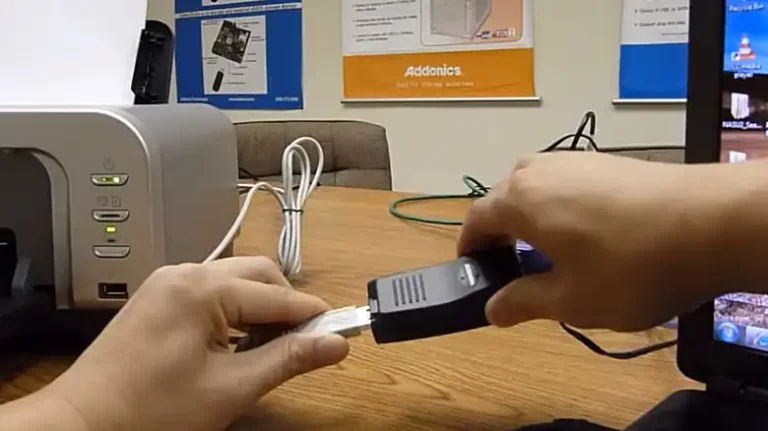
Step 1: Disconnect the printer from your computer and unplug the power cable.
Step 2: After 5 minutes, plug the power cord back in and restart the printer.
Step 3: Disconnect all the peripheral devices connected to your computer.
Step 4: Restart your computer and reconnect the printer to the computer.
Now try printing a document on your printer. If your computer still reboots, then try the other solutions below.
Method 2: Uninstall the Windows Updates
If you are facing this problem because of the latest Windows update that you have installed on your computer, then uninstalling the update will fix the issue. Follow the steps below to uninstall the latest Windows update on your computer.
Step 1: Left-click the Start button, type the control panel, and open it.

Step 2: Go to Program > Programs and Features.


Step 3: Click the View installed updates option from the left pane.

Step 4: Select the Windows update named “KB4524147” in the bracket and Uninstall it.

Now, restart your computer and check if the issue is resolved or not. It is supposed to resolve the issue. But if you can’t find the “KB4524147” Windows update, then try the other methods below.
Method 3: Run the Printer Troubleshooter
In case the problem is with the system, you should run the printer troubleshooter to fix the issue. Here are the steps to follow:
Step 1: Press Windows + I to go to Settings.

Step 2: For Windows 11, navigate to System > Troubleshoot> Other troubleshooters.

For Windows 10, navigate to Update & Security > Troubleshoot > Additional troubleshooter.

Step 3: Locate the Printer and click Run Troubleshooter.

For Windows 11, click Run on the right side of the Printer option.

After this, the troubleshooter will find and repair issues with the printer and your computer system automatically. But if the troubleshooter can’t find any issues with the printer, then follow the next method below.
Method 4: Update the Printer Driver
Your computer can also reboot due to a faulty or outdated printer driver. Updating it can resolve the issue. Here are the steps to follow to update the printer driver:
Step 1: Right-click the Windows icon on the left and select Device Manager.

Step 2: Expand Print queues, right-click on each driver, and select update driver.

Step 3: Select the ‘Search automatically for drivers’ option.

After this, Windows will automatically download and install the driver if available. But if your driver is already up to date, then try the next method below.
Method 5: Set the Print Spooler Service Startup Type to “Automatic”
Selecting the Printer Spooler Service startup type to “Automatic” can help to print smoothly and fix printer-related crashes on a computer. Here is how you can do that:
Step 1: Press Windows + R key to launch the Run window.

Step 2: Type services.msc and click OK to open the Services window.

Step 3: Locate and right-click on the Print Spooler service and select Properties.

Step 4: Click the drop-down button for Startup type and select Automatic.

Step 5: Finally, click Apply and OK to save the changes.
If this is still unable to fix the restart issue on your computer then your system is probably infected with malware and you have to scan your computer with Windows Defender to check if there is any virus or malware.
Method 6: Run a Malware and Virus Scan
To run malware and virus scans on your computer,
Step 1: Press the Windows key, type Windows Security, and open it.

Step 2: Go to the Virus & Threat Protection tab and click Quick Scan.

After this, restart your computer and reboot while the print issue will hopefully
be resolved on your computer.
Pro Tips
An outdated driver can often trigger issues like system crashes, shutdown or reboot the computer automatically. Finding and updating outdated drivers is so tough and time-consuming. For this, you can try any third-party driver updater tools like Driver Easy, DriverFix, etc. to update or fix any corrupted drivers on your computer. But if none of the above methods can fix the issue, then there might be a hardware issue with your printer itself and you have to take it to an authorized repair center to get it repaired.
FAQs (Frequently Asked Questions)
Why Does My Printer Turn Off When I Try To Print?
If your printer turns off automatically when you try to print, then it is probably the energy settings that trigger this issue. To change the energy settings, navigate to Control Panel > Hardware and Sound > Power Options > Edit Plan Settings and click Restore default settings for this plan.
What Causes Computer Restarts Without Warning?
Modern computers come with an advanced feature that automatically turns off or restarts the computer if the processor, GPU, or other crucial component in the motherboard gets too hot. These component gets too hot if the cooling fan isn’t working correctly. However, if your computer restarts while running any specific program or device, then it can be due to incompatibility between the system and the program or the hardware.
What Does It Indicate If Computer Restarts While Printing in Safe Mode?
Computer reboot while printing can be solved if the computer is restarted in safe mode. But if the computer still restarts while printing in safe mode, then it is a sign that the system is attacked by viruses or malware.
You might also find these useful: Can I Print My Taxes Double Sided, Chrome Closes When I Try to Print, Can I Print Photos at Staples.
Conclusion
Computer rebooting while trying to print isn’t a new issue. It has been reported by many users and in most cases, it happened due to the latest Windows update (KB 4524147). But we have mentioned all the effective solutions to fix this issue, and we believe, you can now fix this issue on your computer after reading this article. Don’t forget to mention the method in our comment section below that you’ve applied to fix this issue on your computer.