Canon MG7520 How To Scan | 3 Methods to Scan
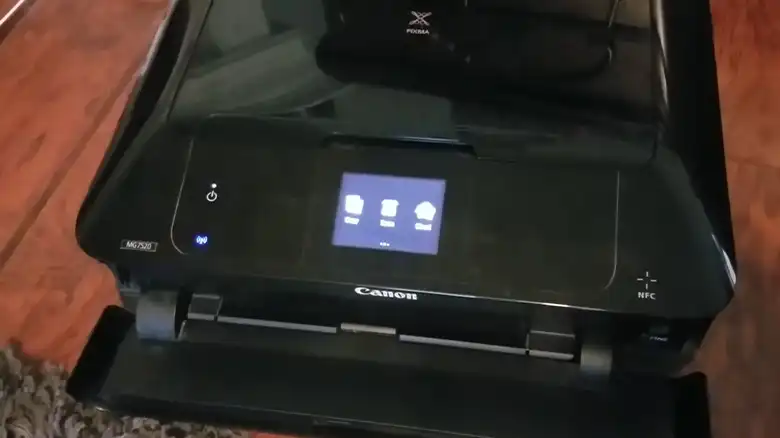
The Canon Pixma MG7520 printer is one of the popular printers among users around the world. This printer comes with a lot of features and for this, it has drawn huge users toward it. It has a lot of features for printing and also, you can see some changes in the scan section as well.
You can use your PC, smartphone, and printer as well for scanning a document and that’s why the scanning process is a little bit different than others. If you don’t have any idea about the scanning process on Canon Pixma MG7520 then this article can help you to learn.
In this article, we will walk you through the step-by-step process of scanning documents on the Canon MG7520. So, without any further ado, let’s scan the documents.
Factors You Should Remember Before Starting the Scanning on Canon MG7520
Maintaining the proper rules before scanning can help you to get an outstanding digital copy. That’s why, here we have provided a few tips that you should follow or remember before starting the scan process. Let’s find out the key points then.
- From the platen edges and between the document, make sure there is a space of at least 0.4 inches or 1 cm.
- If you are using multiple items then maintain a space of 0.4 inches or 1 cm at least between the items as well as between the edge of the platen and the items.
- If somehow you failed to maintain the recommended gap between the edges and the document, then you will need to specify the data format. If you are scanning images and don’t follow the rule then the images will be saved as PDF.
- If you are willing to scan thin and thick documents, photos with a white background, etc., and are willing to use Auto scan then before scanning you will need to adjust the cropping frames.
Procedure for Scanning a Document on Canon MG7520
For scanning a document on Canon MG7520, you can do it by using your PC, smartphone, or the printer itself. Here we have shared the steps for every possible device that you can follow to scan a document or photo using the Canon MG7520.
Method 1: Use a PC to Scan a Document on Canon MG7520
There are several software available that you can follow to scan with your Pixma MG7520 printer from your PC. Among them, the IJ scan utility offers the easiest and simplest way of scanning any document. That’s why we also choose the IJ scan utility over other software and have shared the steps for this software.
First, you will need to download the Canon IJ Scan Utility. Download it and install it on your computer/mac.
- Take the document and place it on the platen.
- Now, launch IJ scan utility on your Windows PC/Mac. If you are using Windows 8 or later, then press Windows + S buttons and then type IJ scan utility and then launch. If you are using Mac, then go to Finder’s Go menu > Applications > IJ Utility folder > IJ Scan Utility folder > IJ Scan Utility / IJ Scan Utility2 / IJ Scan Utility Lite.
- Next, click on Settings and choose the Paper size, resolution, etc. and then click on OK.
- Now, click on Document or Photo to start the scanning process.
Method 2: Use a Smartphone to Scan a Document on Canon MG7520
If you are willing to use your smartphone for scanning a document on Canon MG7520 then you will need to download the Canon print inject/selphy. Follow the steps below.
- Download and install the Canon print inject/selphy app.
- Now, launch the application and connect your phone to MG7520 via a WI-FI connection.
- After that, place the document or photo on the scanner glass.
- Inside the Canon print inject/selphy app, look for the Scan option and tap on it.
- Now, from there adjust the settings according to your need and then start the scanning process.
Method 3: Steps for Scanning a Document on Canon MG7520 on the Canon MG7520
The Canon Pixma MG7520 offers its users to scan/copy/print any document from the scanner itself. To do so, first, you will need to connect the scanner to your device. Now, follow the steps below.
- Put the document or photo on the scanner glass and then tap on the Scan button on the printer.
- After that, it will ask where you want to save the scan copy. At the bottom of the screen on the printer, you will get your device name, tap on it.
- For example, if you are using a PC, then tap on PC, and again select your PC name.
- After that, the printer will ask, whether you want a black & white or a color printer. You will find the button on the printer, select and tap on the button.
- Then the scanning process will be started and after finishing the scanning, the file will be stored on your PC/smartphone.
FAQs – Frequently Asked Questions and Answers
How do I get my Canon printer to scan wirelessly?
Via Wi-Fi, you can connect your device to your Canon printer wirelessly. After that, you will be able to scan documents wirelessly.
Can I save scanned document to Google Drive from the Canon MG7520 directly?
Yes, you can. If you want to save the document in Google Drive, then you will need to tap on the Cloud button on your printer and then scroll down. There you will find the Google Drive option. Tap on it and the scanned document will be stored there.
Can I attach the scanned copy to webmail from the Canon MG7520 directly?
Certainly, Yes. You can do it from the printer. To do so, place the document on the scanner glass > tap on the Cloud button > Scroll down, and choose Attach to Webmail.
For related issues, see Canon MX922 Won’t Scan To Computer, How to Scan on A Canon MG2520, Canon MX492 Won’t Scan.
Conclusion
Lastly, scanning a document with Canon MG7520 is very easy and simple. You can use any device and your printer to scan a document with ease. Follow the steps carefully and get a perfect scanned document from your Canon Pixma MG7520 printer.