
What Is an Active Cell in Open Office Calc? In-Depth Overview
An active cell in OpenOffice Calc is the cell that is currently selected within a spreadsheet. The fundamental building block of a spreadsheet is a cell, which is also where you insert and edit data, formulas, and other content.
The cell that is highlighted or outlined indicates that it is currently in focus and available for tasks like data entry, content editing, applying formatting, or formula creation. This cell is known as the active cell. The detailed specifications of an active cell are followed in the article.
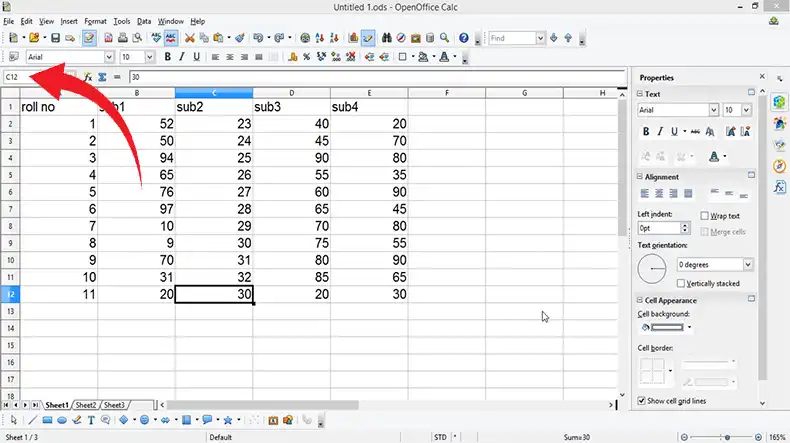
Understanding Active Cells in Open Office Calc
The border of the active cell is highlighted. Although the border is often blue, any color can be used for it. The cell that is shown in the formula bar is also the one that is now active.
The active cell’s contents are displayed in the formula bar, which is situated directly above the spreadsheet. The formula bar will show any text or formula that you write in the current cell. The text and the formula in the formula bar can both be changed.
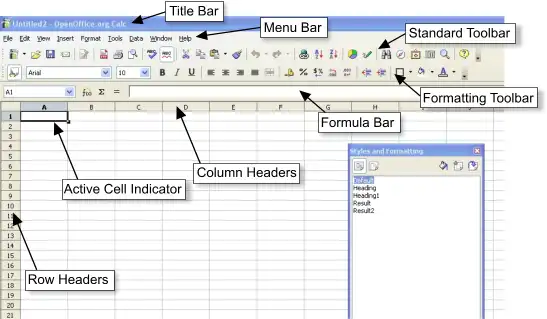
Fig. 1: Active Cell in OpenOffice Calc
1. Navigation
A spreadsheet can be navigated to different cells using arrow keys, mouse clicks, or keyboard shortcuts, among other techniques. The active cell updates to reflect their current selection as they move around the grid. The active cell’s dynamic nature is essential for guiding user actions and maintaining a distinct point of focus.
2. Functionality
You can use the mouse to click on a different cell to activate it or the arrow buttons on your keyboard to get to it. To activate the cell below or above the currently active cell, use the keyboard keys Ctrl+Enter or Alt+Enter, accordingly. The first cell in the range, if you choose a range of cells, will be the active cell.
This indicates that whatever input you provide will be applied to the range’s initial cell. The Ctrl+A keyboard shortcut will select the whole spreadsheet, making the first cell in the spreadsheet the active cell.
If you want to make changes to the entire spreadsheet, this is a helpful shortcut. The active cell can be moved to the formula bar by using the F2 key on your keyboard. If you want to alter the content of the active cell without moving it, using this shortcut is a good option.
Frequently Asked Questions and Answers
What Makes the Idea of Active Cells Significant?
Because they act as the focal point for numerous Calc processes, active cells are important. They make ensure that the proper cell is used for data entering, formula computations, formatting, and other operations.
What Connection Exists Between Formulas and Active Cells?
Selecting the cell in which the desired result should appear is usually the first step in formula creation in Calc. The selected cell becomes the active cell, enabling you to create formulas that execute computations by referencing the contents of other cells.
How Do Formatting and Styling Affect Active Cells?
The active cell is given formatting options such as font styles, colors, and cell borders. You can alter a cell’s look using formatting tools by choosing the cell and doing so.
Can Numerous Cells Be Active at Once?
No, OpenOffice Calc only allows one active cell at a time. Your current point of interaction with the spreadsheet is represented by the active cell.
How Can I Make the Active Cell Inactive?
The active cell will be deselected and a new one will be chosen if you click on another cell, hit the “Enter” key, or use a specific keyboard shortcut.
For related issues, see How Do I Color Cells in OpenOffice Calc? Explained With Step-By-Step Sol, How Do I Insert a Checkbox In OpenOffice Calc? Two Easy Solutions.
Conclusion
Active cells are the hubs of data interaction and manipulation in the universe of OpenOffice Calc. Users can enter data, change content, apply formulas, and format cells using their dynamic interface. Understanding the relevance of active cells allows users to fully utilize the capabilities of spreadsheets to efficiently and accurately organize, and analyze their data.


