
Cannot Insert Objects In Excel | Explained With 10 Solutions
Inserting an object into an Excel worksheet is actually a pretty easy task. Some issues like file format compatibility, protected workbook etc. can raise some issues. In this following article, we will talk about ten of the most common problems and solutions regarding these.

Why Won’t Excel Allow Me To Insert An Object?
There could be several reasons why Excel might not allow you to insert an object. Here are ten common issues that you may run into and corresponding solutions to them.
- File Format Compatibility: Excel supports various types of objects, such as charts, pictures, shapes, and more. If the object you’re trying to insert is in a compatible file format, it may give an error.
For example, if you’re trying to insert an image, ensure that it’s in a commonly supported format like JPEG, PNG, or GIF.
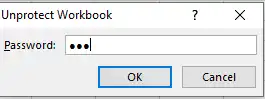
- Protected Workbook/Sheet: If the workbook or sheet is protected with a password or restricted permissions, you might not have the necessary rights to insert objects. Check if the workbook or sheet is protected and remove the protection if needed.
- To do this, In the first place, go to the Review tab >> click the Protect Workbook option >> Enter the password >> press the OK button.

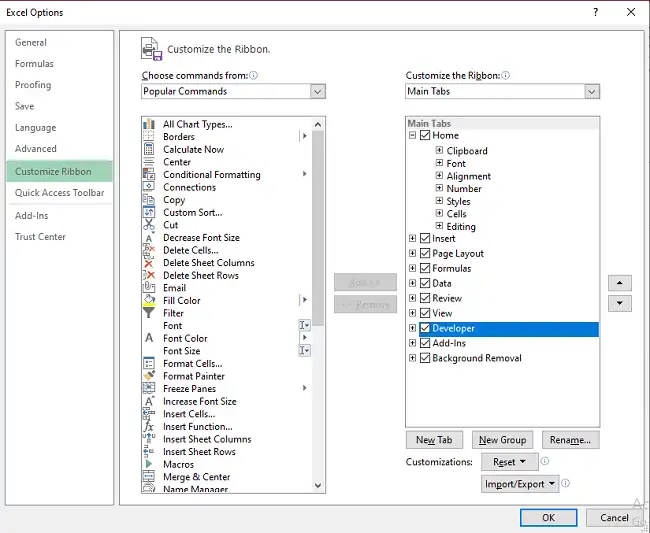
- ActiveX Controls: If you’re trying to insert an ActiveX control (like a checkbox or button), ensure that the “Developer” tab is enabled in Excel.
- You can enable it by going to the Excel Options menu >> Select “Customize Ribbon,” >> Check the “Developer” option >> Press “OK”
- File Size Limits: Large file sizes or complex objects might exceed Excel’s limitations. This can lead to issues when trying to insert an object. Consider resizing or optimizing the object before attempting to insert it.
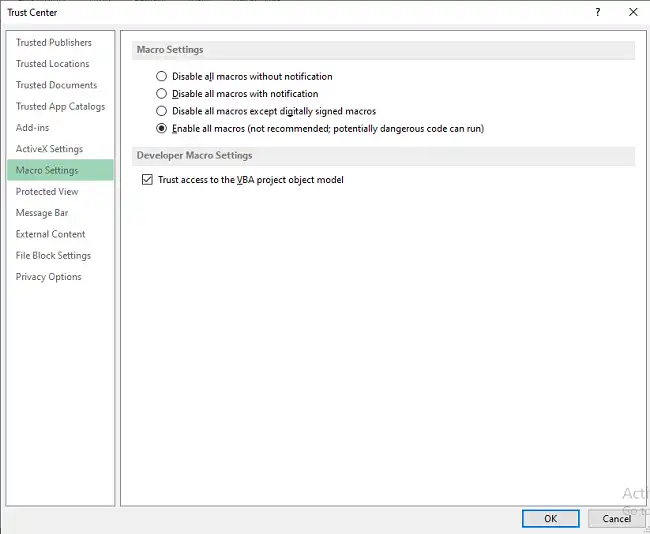
- Macro Security Settings: If you’re trying to insert an object that requires macros to run, Excel’s security settings might prevent this. Make sure that your macro security settings are configured to allow the execution of macros.
- To do this, First of all, jump to the Developer tab >> click the Macro Security option.

- Next, click the Enable VBA macros radio button >> hit the OK button.
- Corrupted Workbook: If the Excel workbook itself is corrupted, it might prevent you from inserting objects. Try opening the workbook on a different computer or using Excel’s repair tools to fix any corruption.
- Initially, copy the dataset from the corrupted workbook using CTRL + C keys.
- Following this, open a new workbook >> hit the CTRL + V keys to paste the data.
- Software Updates: Outdated versions of Excel might have bugs or limitations that prevent certain actions, including inserting objects. Ensure that you’re using the latest version of Excel and that it’s up to date.
- Insufficient Memory or Resources: If your computer is low on memory or system resources, it could impact Excel’s ability to insert objects. Try closing unnecessary applications and freeing up system resources.
- First, close all the Microsoft Office applications >> press the WINDOWS + R keys >> type in %temp% in the Run box >> press OK.
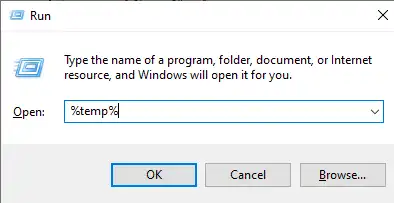
- Second, enter .exd in the search bar >> select the file with the .exd extension and delete it permanently.
- Lastly, restart your computer and check to see if you can insert objects in Excel.
- Add-Ins: Some third-party add-ins or extensions might interfere with Excel’s functionality, including the ability to insert objects. Try disabling any add-ins and see if the issue persists.
- File Location and Permissions: If the file is located on a network drive or shared folder, ensure that you have the necessary permissions to access and modify the file.
How Do I Enable Insert Object In Excel?
To enable the “Insert Object” feature in Excel, follow these steps:
- Open Excel: Launch Microsoft Excel on your computer.
- Access the Developer Tab: By default, the “Developer” tab might not be visible on the Excel ribbon. The steps are given above. Enable the Developer Tab.
- Insert Object: Follow these steps to insert an object using the “Developer” tab:
a. Open the worksheet where you want to insert the object.
b. Click on the “Developer” tab on the ribbon.
c. In the “Controls” group, you’ll find the “Insert” button. Click on the arrow next to it to reveal a drop-down menu.
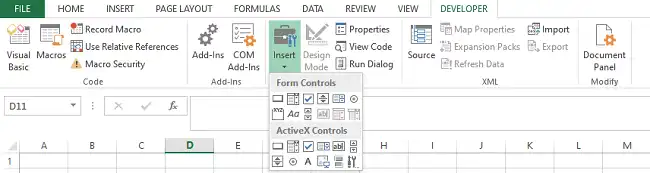
d. From the drop-down menu, select “More Controls.” This will open the “More Controls” dialog box.
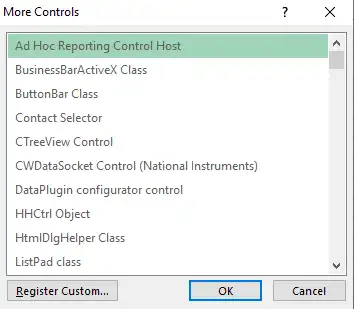
e. In the “More Controls” dialog box, you’ll see a list of available controls and objects you can insert. Select the object you want to insert, and then click the “OK” button.
The “Insert Object” feature in Excel allows you to insert various types of objects, such as ActiveX controls, form controls, and more. The steps above show you how to access this feature via the “Developer” tab.
Why Is Excel Not Letting Me Insert a Picture?
Images cannot be copied and pasted onto an Excel worksheet like Microsoft Word. To add an image in Excel, you will have to go to Insert >> Illustrations >> Pictures and select the image of your choice. Then the image can be added to your desired worksheet.
Frequently Asked Questions and Answers (FAQs)
How Do I Activate a Word Object In Excel?
It’s easy to Import Word Documents as Objects in an Excel worksheet. Here are seven easy steps to do so:
Step 1: Open Excel and Create a New Workbook.
Step 2: Insert a New Object from Insert Tab
Step 3: Choose “Create from File“
Step 4: Browse for the Word Document.
Step 5: Choose Display Options.
Step 6: Adjust Object Size and Position.
Step 7: Save Your Workbook.
How Do You Activate Shapes In Excel?
To activate shapes, here are some easy steps tp follow:
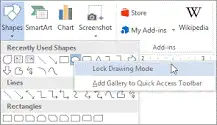
- Go to the Insert tab >> Click Shapes.
- Click the shape you want, click anywhere in the workspace, and then drag to place the shape. To create a perfect square or circle (or constrain the dimensions of other shapes), press and hold Shift while you drag.
If this helped, take a look at How Do I Insert a Checkbox In OpenOffice Calc? Two Easy Solutions, What Is Conditional Formatting in Excel? 6 Features Explained, How to Fix Microsoft Word Starter 2010 Cannot Be Opened.
Conclusion
The discussed steps can easily help you to insert an object into your desired worksheet. However, keep in mind that if you’re using a specific version of Excel, the steps might slightly differ. The general process should be similar across different versions of Excel, but menu options and button placements might vary.


