
How Do I Color Cells in OpenOffice Calc? Explained With Step-By-Step Solution
Colored cells increase the attractiveness of the sheet. In OpenOffice Calc, you can easily color cells to highlight data or improve the visual presentation of your spreadsheet. This article will discuss an easy step-by-step solution to add colors to your OpenOffice calc sheet cells.
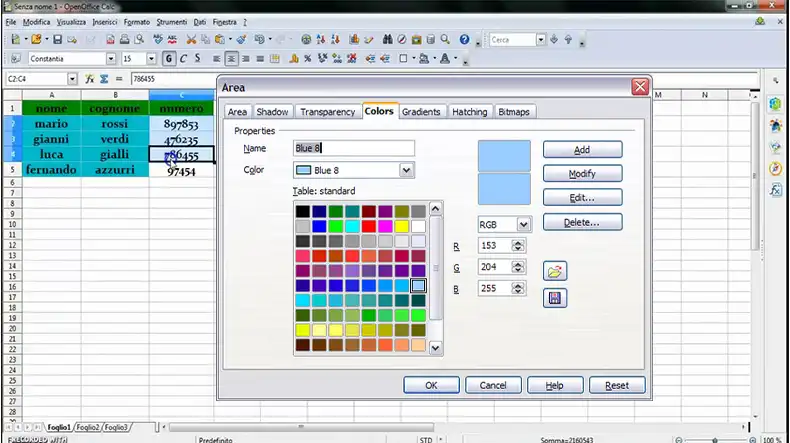
Coloring Cells in OpenOffice Calc
It’s quite easy to add color to your cells. Here is an easy step-by-step solution you may follow to do this:
- Select Cells to Color:
- Click and drag your mouse to select the cells you want to color. Alternatively, you can select an entire row or column by clicking on the row or column header.
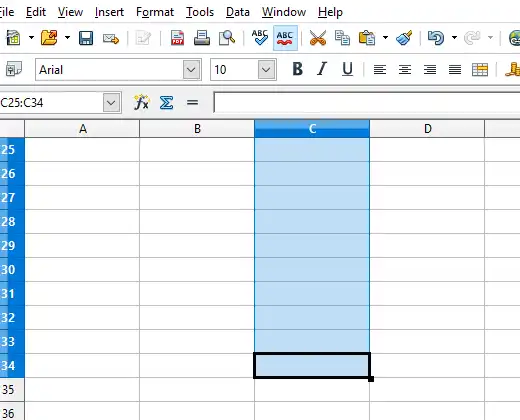
- Apply Cell Background Color:
- Once you have selected the cells, go to the “Format” menu at the top.

- Choose Cell Background Color:
- From the “Format” menu, hover over the “Cell” option.
- In the submenu that appears, select “Background”
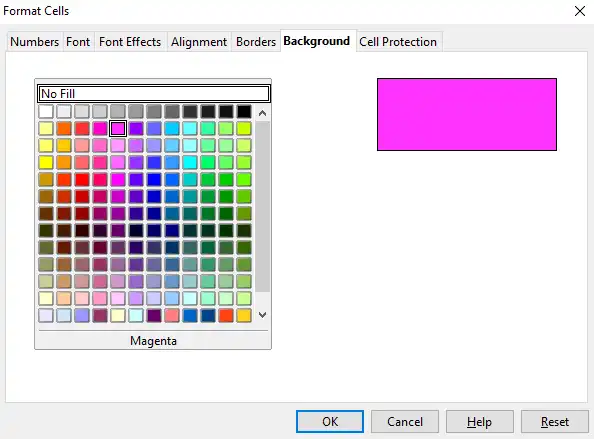
- Pick a Color:
- A color selection window will appear, allowing you to choose the background color for the selected cells.
- You can pick a color from the available swatches or use the color picker to select a custom color.
- Confirm and Apply Color:
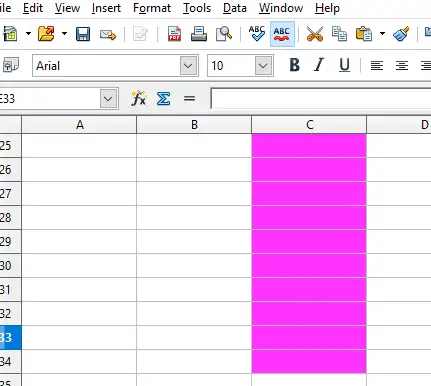
- After selecting the desired color, click the “OK” button.
The selected cells will now have the chosen background color applied to them.
Frequently Asked Questions and Answers – FAQs
How do I Format cells in OpenOffice Calc?
For auto-formatting cells and sheets, you may follow these steps:
- Select the cells, including the column and row headers, that you want to format.
- Choose Format >> AutoFormat.
- To select which properties (number format, font, alignment, borders, pattern, auto fit width and height) to include in an AutoFormat, click More. …
- Click OK.
How Do You Color Text in OpenOffice?
To apply color to text in OpenOffice Writer,
- Select the text
- Click and hold down on a text color icon
- Find the color you want, and click the color
That color will be applied to the text.
How Do I Change the Text Format in OpenOffice?
To change the text format in OpenOffice,
- Press F11 to open the Styles and Formatting window.
- On the Paragraph Styles page of the Styles and Formatting window, right-click on Default in the list
- Select Modify.
You might also find these useful: How Do I Insert a Checkbox In OpenOffice Calc? Two Easy Solutions, What Is an Active Cell in Open Office Calc? In-Depth Overview, Can I Print My Taxes Double Sided.
Conclusion
By following the steps above, you can easily color the cells you want. The steps and the layout of menus may vary slightly depending on the version of OpenOffice Calc you are using.
If you’re using a newer version, the steps outlined above should still be relatively consistent, but it’s always a good idea to consult the official documentation or user guides for the specific version you’re using if you encounter any differences.


