
How Do I Insert a Checkbox In OpenOffice Calc? Two Easy Solutions
For creating interactive forms in Writer, the Apache OpenOffice suite includes form objects, such as checkboxes. Adding checkboxes creates small squares in the document that can be checked or unchecked with a click of the mouse which are useful for task lists or questionnaires that enable users to select multiple criteria.
In this article, we will discuss about two step-to-step solutions to add checkboxes in OpenOffice Calc.
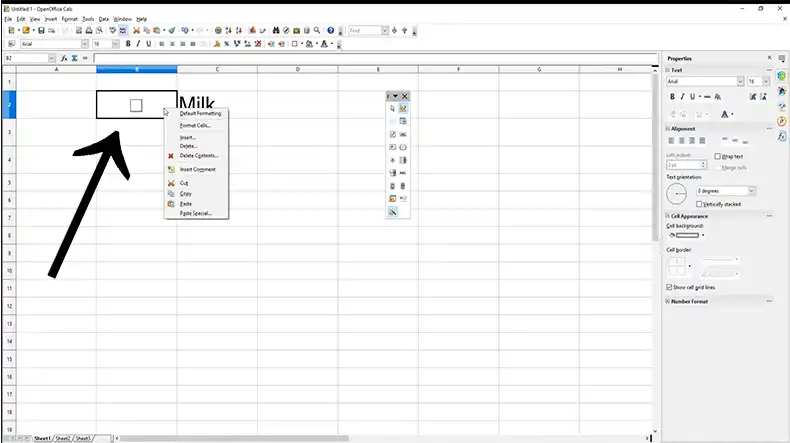
Inserting Checkboxes in OpenOffice Calc
There are a few ways to add a checkbox to a calc spreadsheet. Here are two easy ways to do so.
Solution 1: From ‘View’ Menu bar
Checkboxes can be added from the View menu bar. To do this, follow the following steps.
- Click “View,” >> “Toolbars” and then “Form Controls” to access the Form Controls toolbar.

- Click the “Check Box” icon on this toolbar and then select a location to add a check box to the document. Double-clicking the new check box enables you to fine-tune this form element, such as renaming it, changing the default state and making it printable.
- Clicking the “Design Mode” icon on the toolbar returns to normal text mode, which makes the check box active.
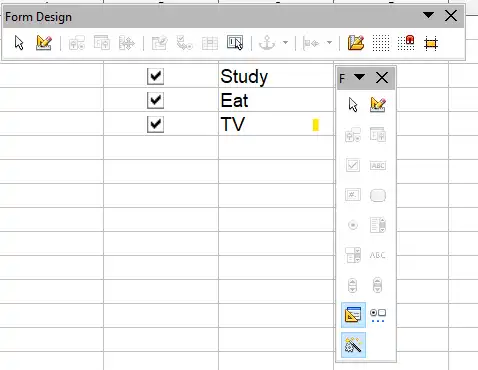
- Once completed, it’s helpful to make the document read-only by clicking File >>Properties >> Security >> Open File Read-Only >> OK.
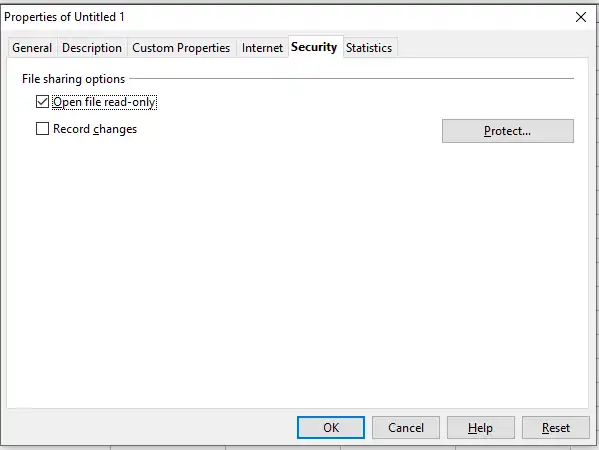
This setting forces users to save their changes as a separate file to preserve the original.
Solution 2: From ‘Insert’ Menu bar
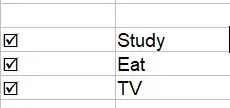
You can create a checkbox symbol in the sheet cell. To create a Checkbox Symbol,
- Click on the cell where you want to insert the checkbox.
- Go to the “Insert” menu at the top.
- Choose “Special Characters” (or “Symbols” in some versions).
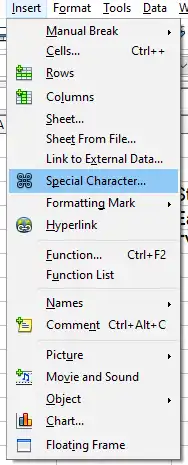
- In the “Special Characters” dialog box, choose the “OpenSymbol” font.
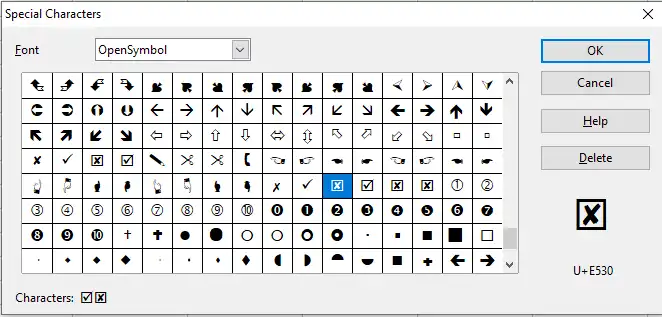
- Scroll down to find the checkbox symbol (often labeled as “Box” or “Ballot Box”).
- Double-click on the checkbox symbol to insert it into the cell.
FAQs (Frequently Asked Questions and Answers)
How Do I Insert a Checkbox In the Writer?
To insert a checkbox in the writer, follow these steps.
- Open Writer.
- Select View >> Toolbars >> Form Controls.
- Select Check Box from the new Toolbar.
How Do I Insert a Column in OpenOffice Calc?
To add a single column or row you may follow these steps:
- Select the column or row where you want the new column or row inserted.
- Right-click the header.
- Select Insert Row or Insert Column.
What Is the Shortcut Key Of Inserting Function in OpenOffice Calc?
Here are some shortcuts you may need to insert functions:
- Press F2 to show the whole dialogue.
- Ctrl+F2 Opens the Function Wizard.
- Shift+Ctrl+F2 Moves the cursor to the input line where you can enter a formula for the current cell
If this helped, take a look at How Do I Color Cells in OpenOffice Calc? Explained With Step-By-Step Sol, What Is an Active Cell in Open Office Calc? In-Depth Overview, Cannot Insert Objects In Excel.
Conclusion
Checkboxes are important for sheets. You can easily use the methods discussed above to elevate your sheet by adding checkboxes. However, you may have to do it multiple times for multiple cells or by simply copy and paste.


