
What Is Conditional Formatting in Excel? 6 Features Explained
Conditional formatting in Excel is a feature that allows users to highlight cells with a specific color, icon, etc., based on the cell’s value. It helps visualize data by formatting it according to a defined condition or criteria.
Let’s explore the features of Conditional Formatting in Excel in greater detail.
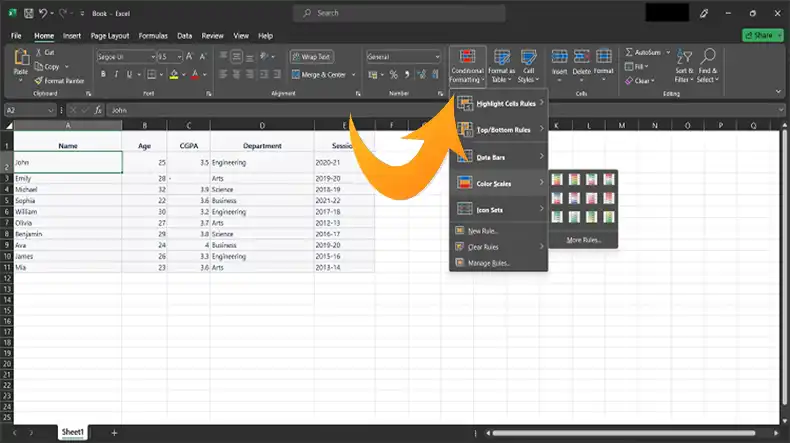
Features of Conditional Formatting
Conditional Formatting provides features such as:
1. Highlight Cell Rulers: These allow conditional formatting based on specific parameters like greater than, less than, between, equal to, text contains, date occurring, etc. Very customizable for focusing on key thresholds.

Fig. Highlight Cell Rulers in Conditional Formatting.
2. Top/Bottom Rulers: These rules allow users to highlight cells that rank in a data set’s top or bottom n percentage, number, or standard deviations. For example, highlight the top 5 values or the bottom 10%. Useful for quick visual analysis.
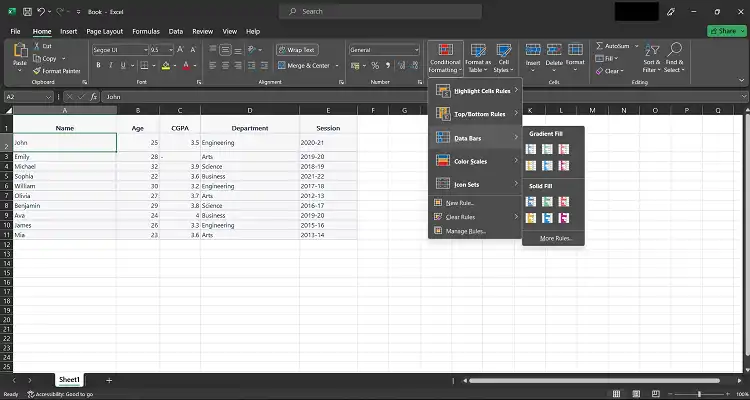
Fig. Top/Bottom Rulers in Conditional Formatting.
3. Data Bars: Data bars represent cell values using horizontal bars, similar to a progress bar. The length of the bar represents the value. Visualizes magnitude and comparisons well.
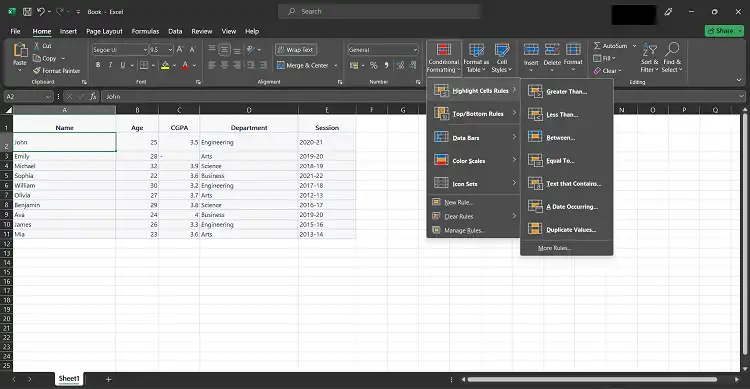
Fig. Data Bars in Conditional Formatting.
4. Color Scales: Color scales format cells using a gradient color scale to indicate higher/lower values. A 3-color scale is common – low values are red, mid is yellow, and high is green. Helps visualize data distribution.
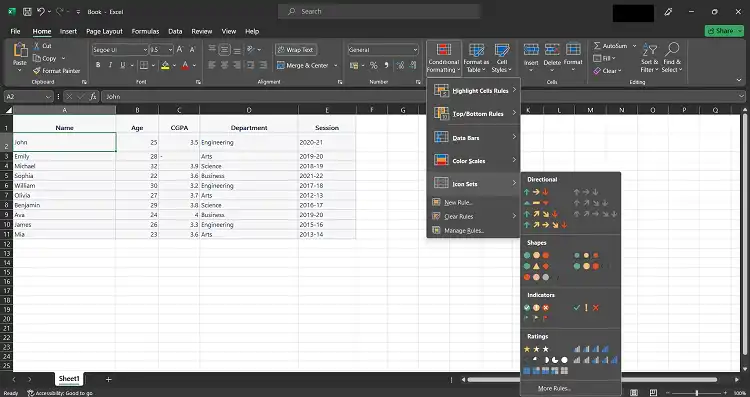
Fig. Color Scales in Conditional Formatting.
5. Icon Sets: Icons (like arrows, shapes, and flags) are used to indicate cell value thresholds. For example, red downward arrows for low values, yellow sideways arrows for medium, and green up arrows for high. Conveys meaning easily.
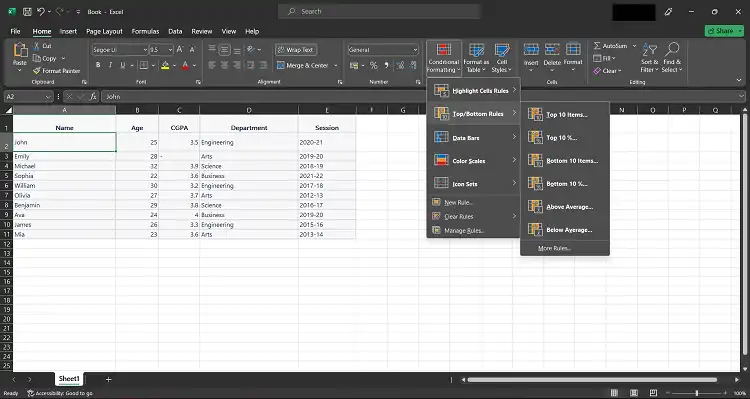
Fig. Icon Sets in Conditional Formatting.
6. New Rules, Clear Rules, and Manage Rules: These allow full control over creating new conditional formatting rules, clearing them, and managing the priority order of rules. Apply rules to all cells or unique cells only.
Frequently Asked Questions and Answers (FAQs)
1. Can multiple formatting rules be applied to the same cell?
Answer: Yes, multiple rules can be applied to a single cell, and Excel will follow the priority set for those rules to determine the formatting.
2. Will Conditional Formatting slow down Excel files?
Answer: In most cases, Conditional Formatting won’t significantly slow down Excel. However, using many complex rules on a big dataset might slightly affect performance.
3. Can custom formatting rules be created beyond the built-in options?
Answer: Creating custom rules using formulas will match the specific conditions. This allows users to have unique formatting based on criteria.
4. Will Conditional Formatting affect the actual data in my cells?
Answer: No, Conditional Formatting only changes the visual appearance of cells based on the user’s rules. It doesn’t alter the actual data in the cells.
To Conclude
Conditional formatting is an extremely useful Excel feature that allows users to format spreadsheet cells dynamically based on given criteria and rules. Knowing how to leverage conditional formatting effectively can help users better analyze and visualize key insights from data.
Related reading: Cannot Insert Objects In Excel.


