How to Record a Presentation on Teams? 7 Steps Guide
Using Microsoft Teams makes it simple to record a group presentation. This tutorial will show you how to use Microsoft Teams’ video call feature to record a narrated presentation. We may screen share and record our desktop and anything visible on it, including PowerPoint slides, using the video call feature. Let’s dive into the deep of the web to learn how to do so.
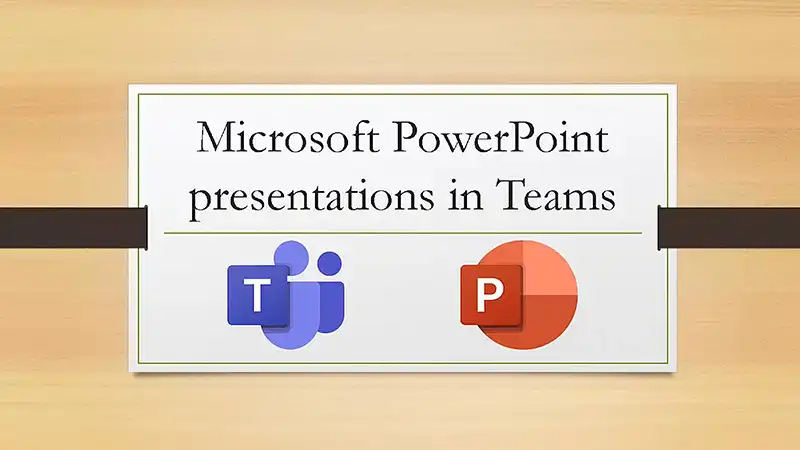
A Step-By-Step Guide on How to Record Presentations on Microsoft Teams
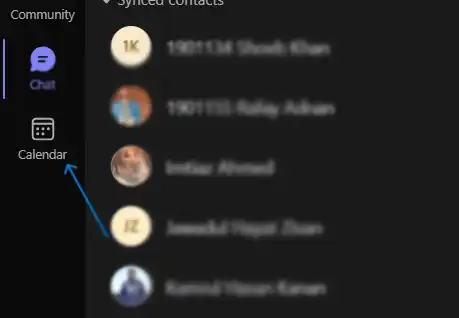
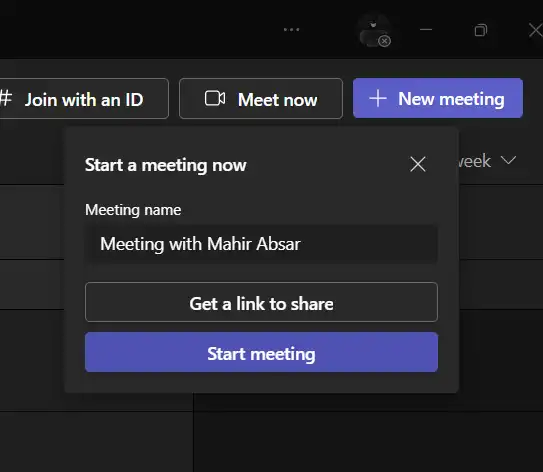
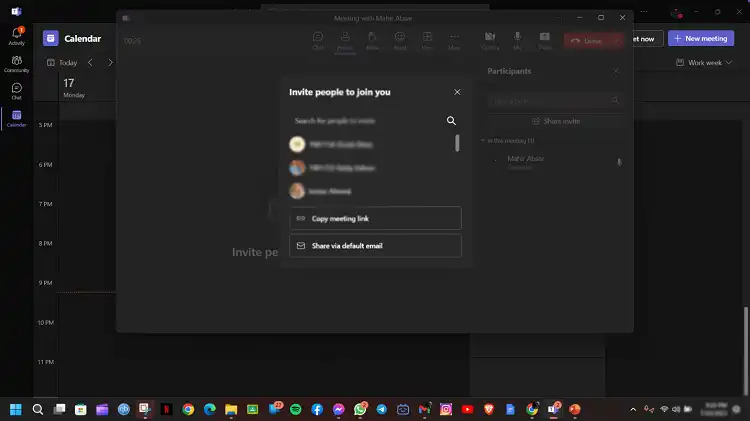
These are the procedures we must take in order to record a presentation on Microsoft Teams.Step 01We first need to start a teams meeting. To do open Microsoft Teams and start a new meeting by clicking on the “Calendar” tab, then “New meeting” to schedule a meeting or “Meet now” to start an instant meeting.
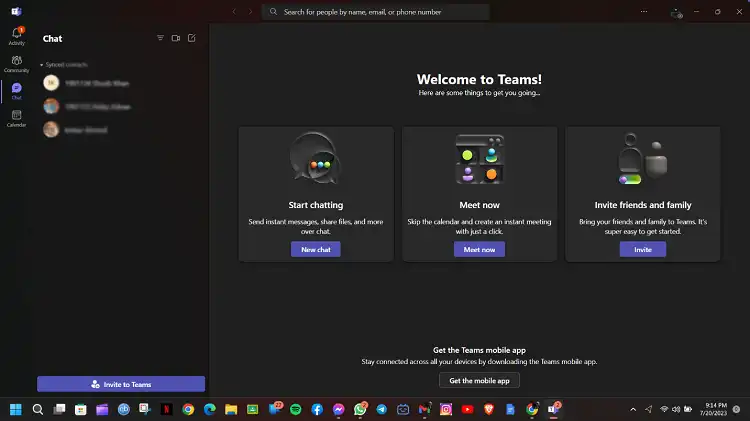
The user interface of Microsoft Teams on Windows 11
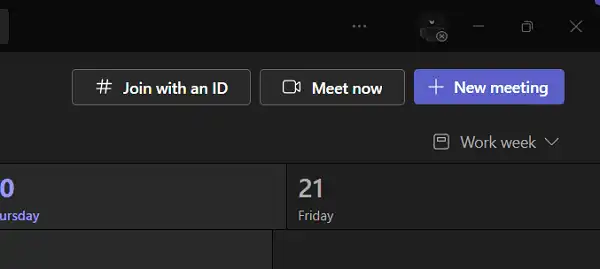
Include the attendees we want to the meeting. We may skip this step if it’s only a recording and nobody else has to participate.
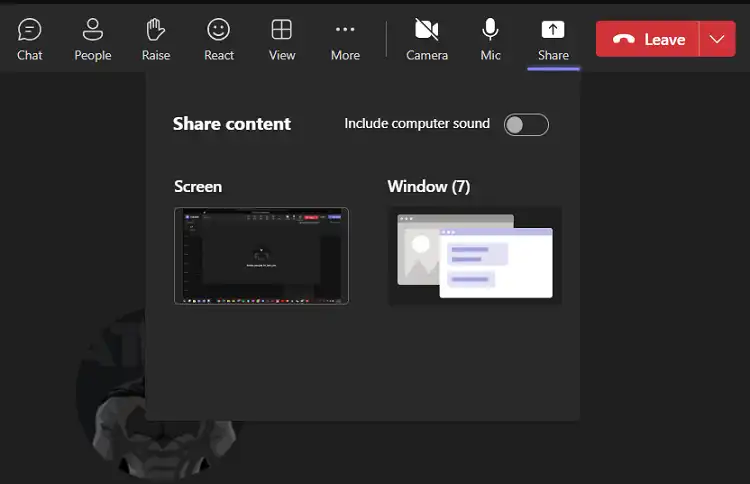
Once the meeting has begun, select “Share” from the list of available options at the top of the meeting window. Select the window or screen that we wish to exhibit. Open the presentation if we’re giving a PowerPoint or other presentation before selecting “Share.”
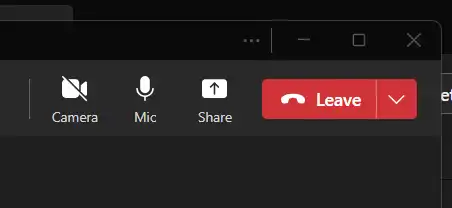
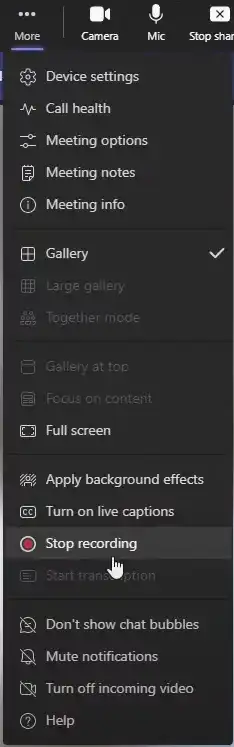
Click the “More options” (three dots) in the meeting controls in the top-right corner of the screen after your screen has been shared. Go to the menu and choose “Start recording.” Teams will announce to the group that the recording has begun.
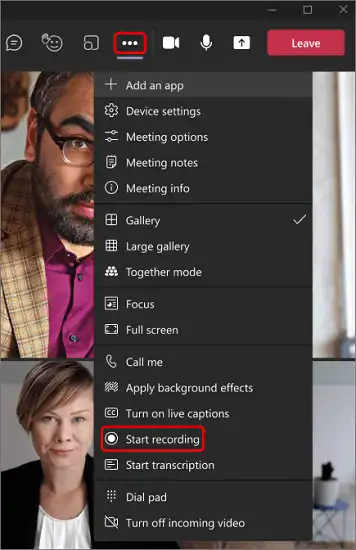

We’ll start out with our presentation as usual. Talk clearly, describe our subject, and use our slides or other tools to navigate. Go return to the “More options” (three dots) option when the presentation is over and select “Stop recording.” The recording will be halted and saved by the teams.
If we were recording a meeting that had other participants present, we may cease the meeting when the recording was finished. The meeting can be ended by clicking the “Hang up” or “Leave” button.

The presentation recording will be kept in Microsoft Teams. Go to Teams’ “Chat” area and search for a message from “Microsoft Teams” that says something like “Your recording is ready.” to access it. To play the recording, open the link in that message. To share a recording with non-attending parties, upload it to a file-sharing service like OneDrive or SharePoint, or download it from Microsoft Stream with permission. Be aware that Microsoft Teams upgrades may modify procedures and available choices. Check your organization settings to ensure you have the necessary rights to record meetings and access recording tools.
Who Can Start or Stop a Recording?
According to Microsoft, as long as the meeting organizer has their cloud recording policy setting switched on, anybody who matches the following requirements can start or stop a recording, even if the organizer isn’t present.Has one of the following licenses: Office 365 Enterprise E1, E3, E5, F3, A1, A3, A5, M365 Business, Business Premium, or Business Essentials.Has recording enabled by an IT admin.Isn’t a guest or from another organization.
Types of userCan start recording?Can stop recording?
Meeting organizerYesYesPerson from the same orgYesYesPerson from another org or companyNoNoGuestNoNoAnonymousNoNo
How to Record a Presentation on Teams Without Showing the Participants?
Microsoft Teams does not come with a built-in option to record a presentation without revealing the attendees as of my most recent version in September 2021. Microsoft Teams records meetings so that you may watch them afterward. The presenter’s video feed is also recorded.
To Conclude
The ability to record presentations on Microsoft Teams is a useful tool for sharing expertise, getting the word out, and expanding your audience. Users who follow the instructions in this report may quickly record and share their presentations on the Microsoft Teams platform. This capability improves cooperation and makes sure that important material may be viewed outside of a live meeting.
If this helped, take a look at How to Pre-Record a Presentation, What Does It Mean to Use Too Much Jargon in a Slide Presentation, How To Narrate A Powerpoint Presentation On Mac.