
Can’t Find Microsoft Word | How to Fix
After turning on your PC, you weren’t able to find Microsoft Word software. You have seen it last night but this morning, the thing has totally vanished. Well, it’s a very common issue for the Word user that they weren’t able to find the shortcut or the software from the start menu.
Well, there is nothing to worry about as this issue can be solved pretty easily unless you have uninstalled the software. By using the Run program or just simply using your mouse, you can be able to find Microsoft Word applications.
Read the article till the end and learn how to do abracadabra and find Microsoft Word without any hassle. Let’s begin then!
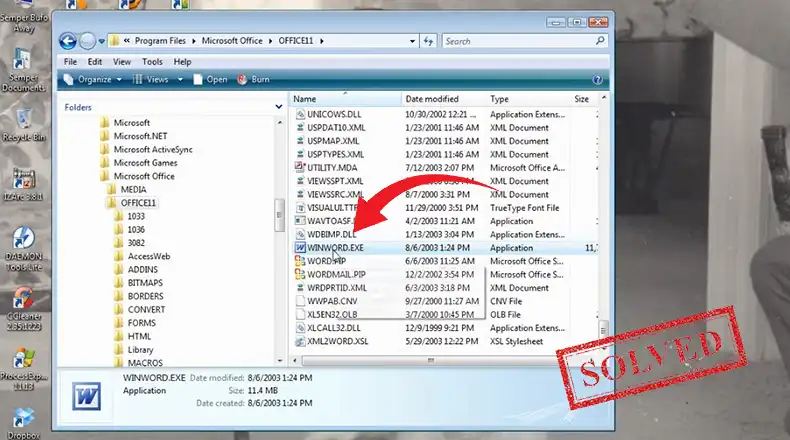
How to Find Microsoft Word on Windows – 2 Methods
If Microsoft Word is installed on your computer and you didn’t have uninstalled it then you can find it easily. First, try to search for it in the Start menu or by using the search console.
NOTE: If you have more than 500++ software installed on your computer then you won’t be able to find Microsoft Word there.
If you couldn’t find it there then you will need to follow the ways below.
Way 1: Find Microsoft Word Through Run Command
By using the Run command dialog box, you will be able to find Microsoft Word. Here are the steps that you will need to follow.
- Press Windows + R button and open the Run dialog box.

- Now, type winword.exe and hit enter.

- The Word document will be opened.
- On the taskbar, right-click on the Microsoft Word icon and then click on Pin to taskbar.

By now you will be found Word and can pin it to the taskbar for further use.
Way 2: Find Word by Repairing Microsoft Office
If there are issues with Microsoft Office then you won’t be able to find Microsoft Word. That’s you will need to repair Microsoft Office software. To do so –
- Click on the search icon on the taskbar and type Control Panel. From there click on Programs and Features.

- Now, on the next window, look for Microsoft Office, right-click on it, and click on Change.

- After that, on the confirmation window, it will ask for your permission, click on Yes.
- Then click on Quick Repair and then click on Repair. The repairing process will be started and then check whether you can find Word or not.

Bonus Tips for Finding Microsoft Word in Windows 7, 8
The aforementioned ways can be used on any type of Windows version. If you are Windows 7 and 8 user then you can follow another way which is, first go to C drive > then navigate to Program Files > look for Microsoft Office > Look for Office inside of it and navigate to it > and then look for winword.exe > Right click on it, copy and paste on your Desktop.
Also, if the Word isn’t uninstalled then right-click on the Desktop empty space > click on New > click on Microsoft Word.
Frequently Asked Questions and Answers (FAQs)
Why I can’t find Microsoft Word 2007 on Windows 10?
The reason behind this issue is incompatibility. The 2007 version of Microsoft Word isn’t compatible with Windows 10. That’s why it won’t install and won’t be able to find.
How to find Microsoft Word on Mac?
With the help of Finder or Spotlight, you will be able to find Word on your Mac. Click on Spotlight, type Word, and then you will find it there.
Related reading: How to Find Microsoft Word on Windows 7? Simple Methods to Follow, How to Fix Microsoft Word Starter 2010 Cannot Be Opened, Why Is Microsoft Word Background Gray? 2 Simple Methods to Change.
Conclusion
To sum up, by following the aforementioned methods or ways, you will be able to find Microsoft Word easily. If still you are having the issue, then most probably you have uninstalled Microsoft Word from your PC. Install it again and start using it.


![[ANSWERED] Why Is MS Word Important?](https://documenthow.com/wp-content/uploads/2023/02/5-1-1-768x351.webp)
![[Fix] Microsoft Word Not Saving on Mac](https://documenthow.com/wp-content/uploads/2023/12/Fix-Microsoft-Word-Not-Saving-on-Mac-768x428.webp)
